
How to copy an edition and prepare your next event
Useful tips on how to best copy your editions.
1. How to copy an edition
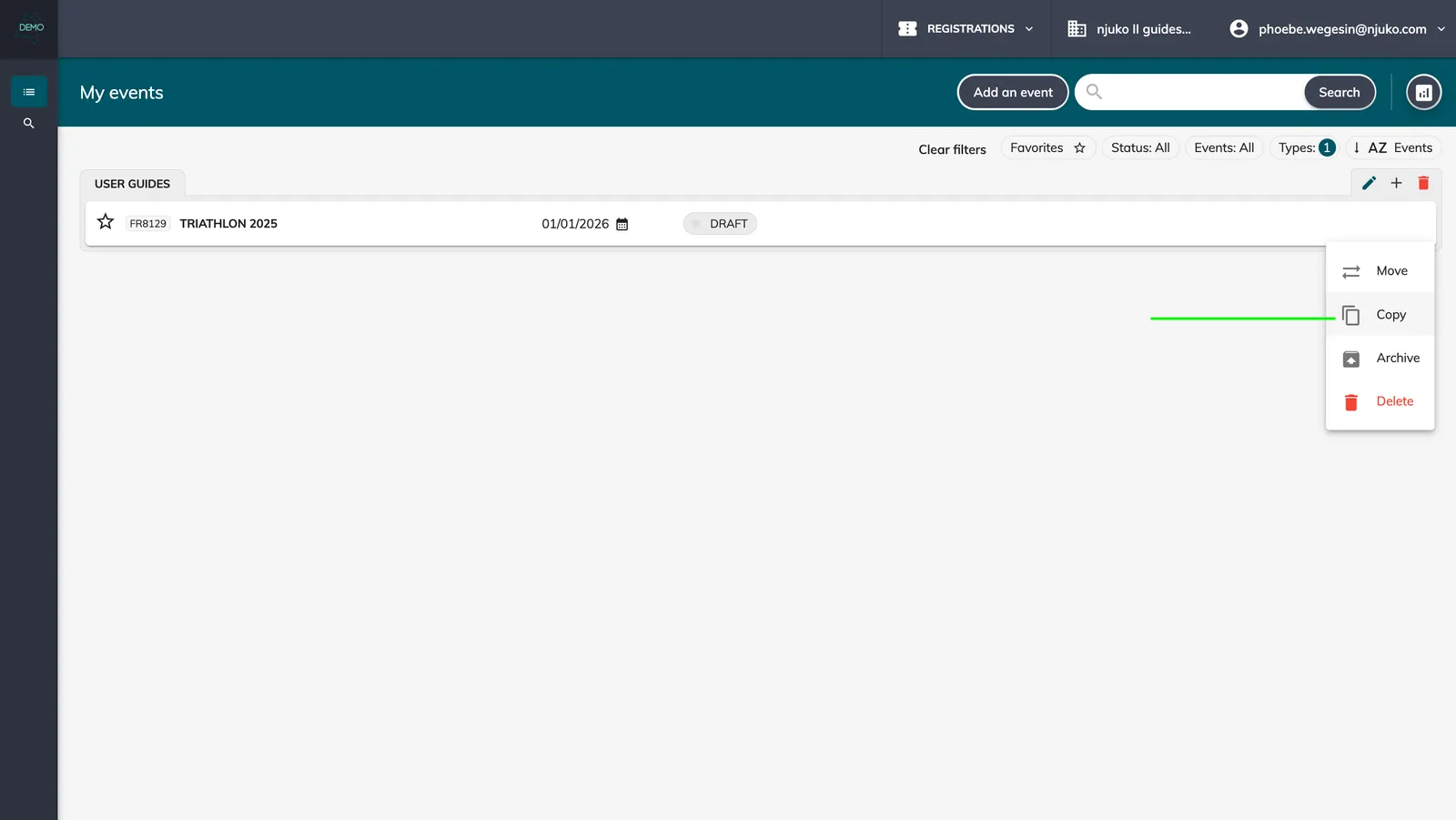
To copy an edition, click on the 3 dots over on the right, and click on ‘copy’:
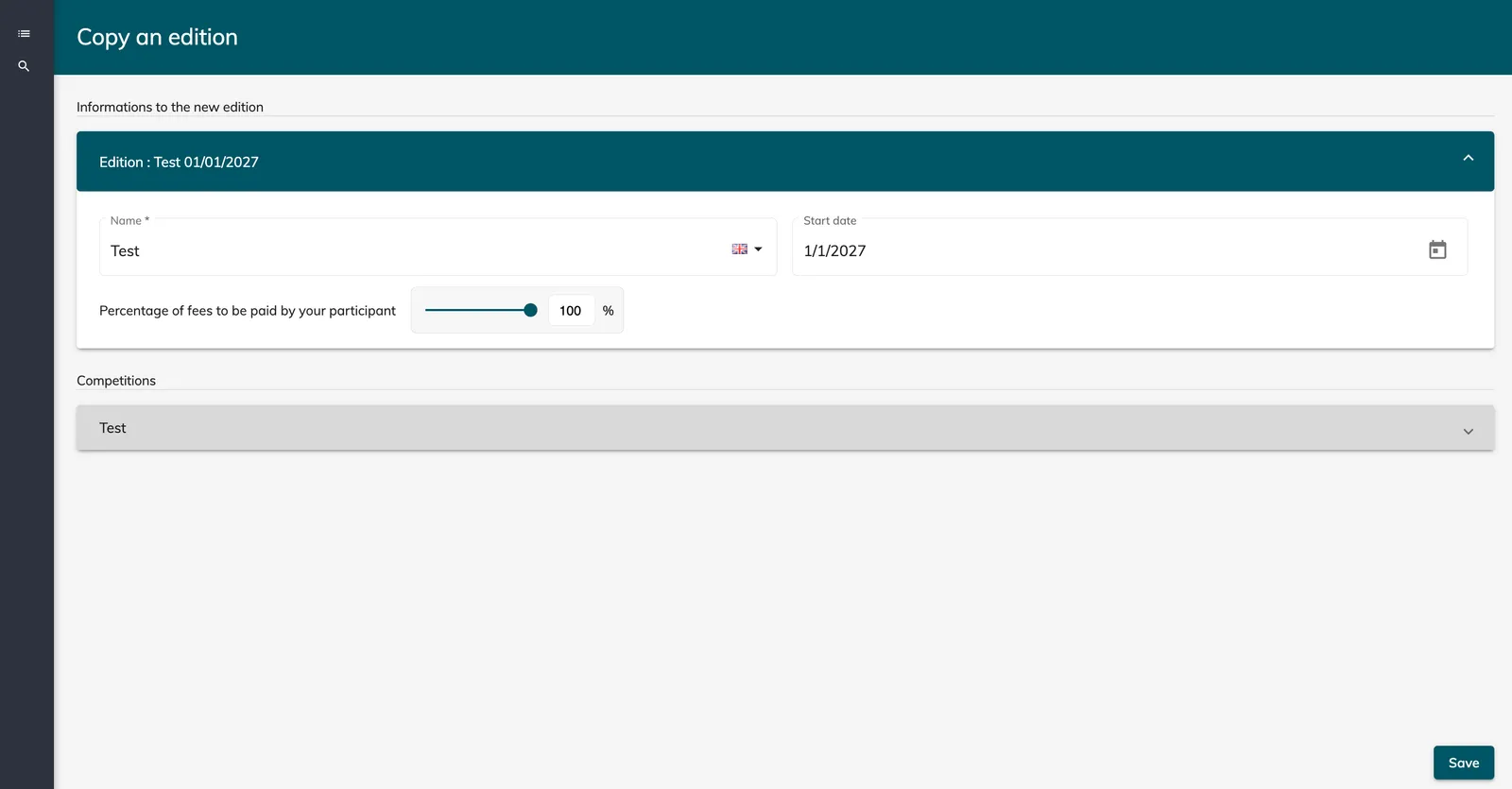
You will then be prompted to create the name of your new edition, and go through some basic settings:
2. Check-list of what to check and update in your newly copied edition
-
Competition settings: update the dates and prices ; check or create the registration transfer rules & competition change rules ; relink the DOB field if using the age restriction.
-
Emails: update the variables so they are pulling from the current edition instead of the copied edition.
-
Email rules: update the competitions linked to the email rules.
-
Workflow URLs to be updated (if they have been put into emails or dashboard widgets)
-
Check all links in the dashboards.
-
Tag conditions to be checked.
-
Messages: relink to competitions if you have messages on competition tickets.
-
Check the field settings in your forms (especially the visibility and conditional logic).
-
Recreate bib series.
-
If using integrations (fundraising, google, etc.): update the settings (IDs, API keys, etc.) and mapping if applicable.
-
In general, check the dates that you have in your content fields, messages, dashboards and in your emails