
How to export participant data
How to create a participant export.
1. How to create a participant export
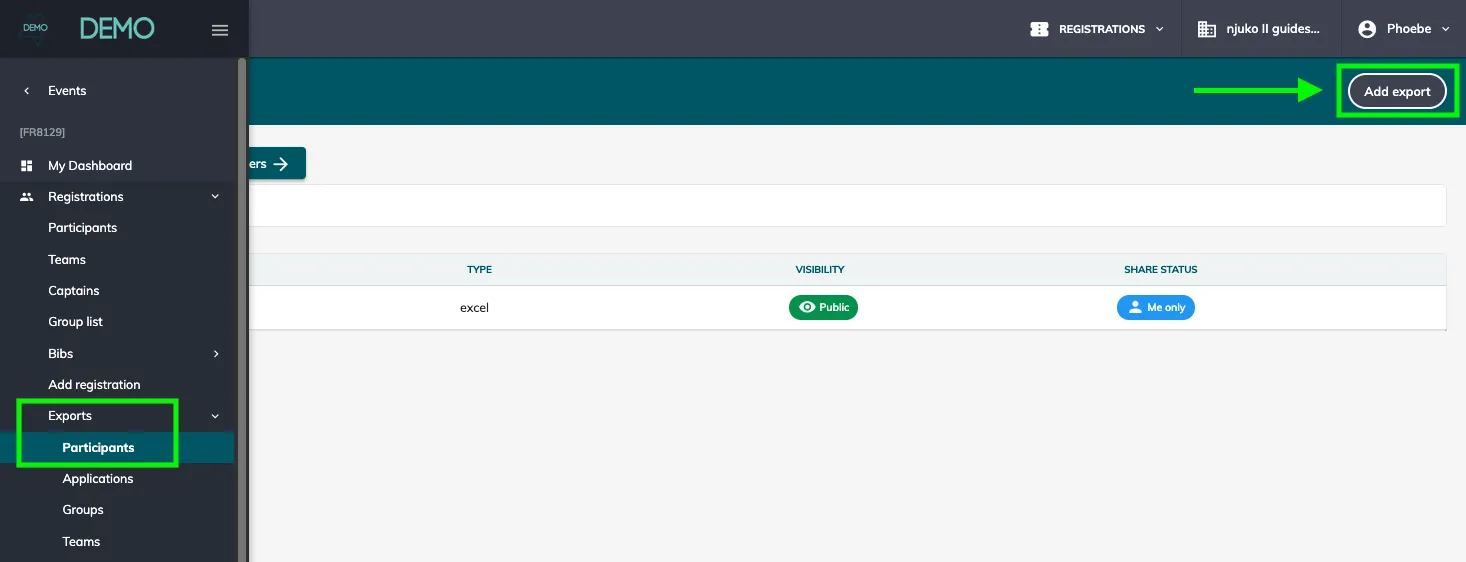
Go to ‘Registrations’ > ‘Exports’ > ‘Participants’ > click on ‘Add export’.
1.1 Step 1
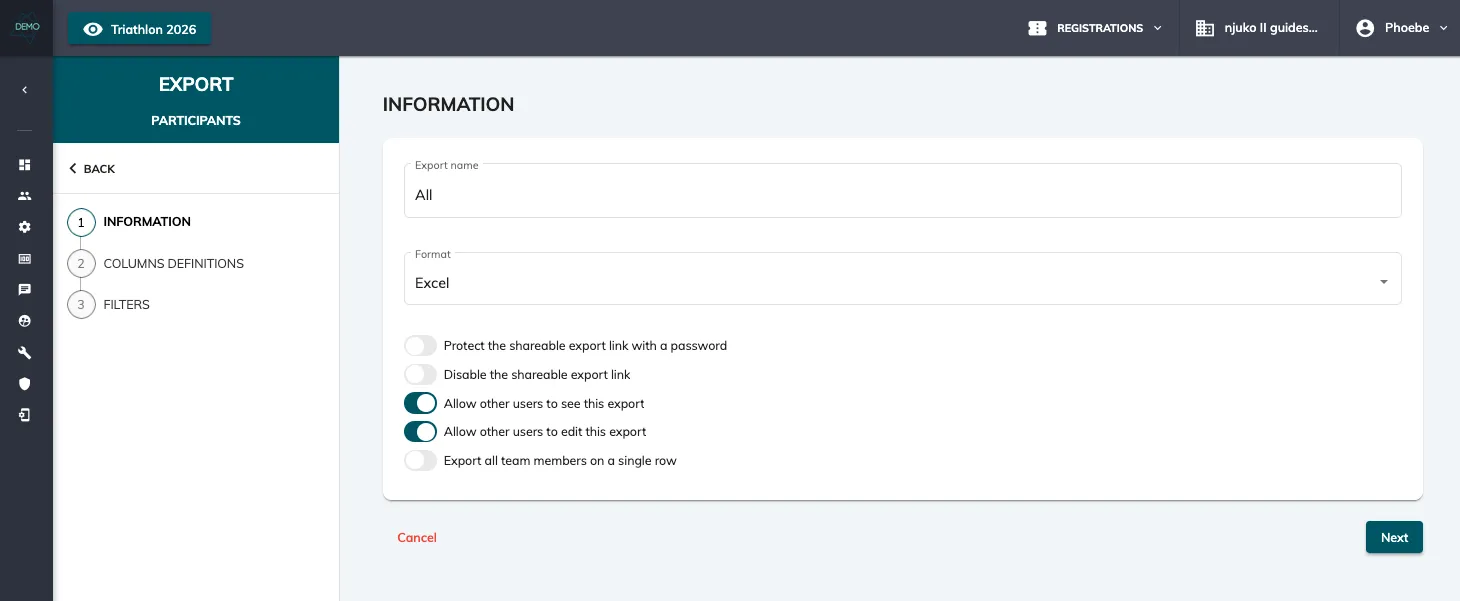
Name your export and select the format. You can choose to:
-
password protect your export
-
disable the shareable export link
-
allow other users to see your export
-
allow other users to edit the export
-
export all team members on a single row
1.2 Step 2
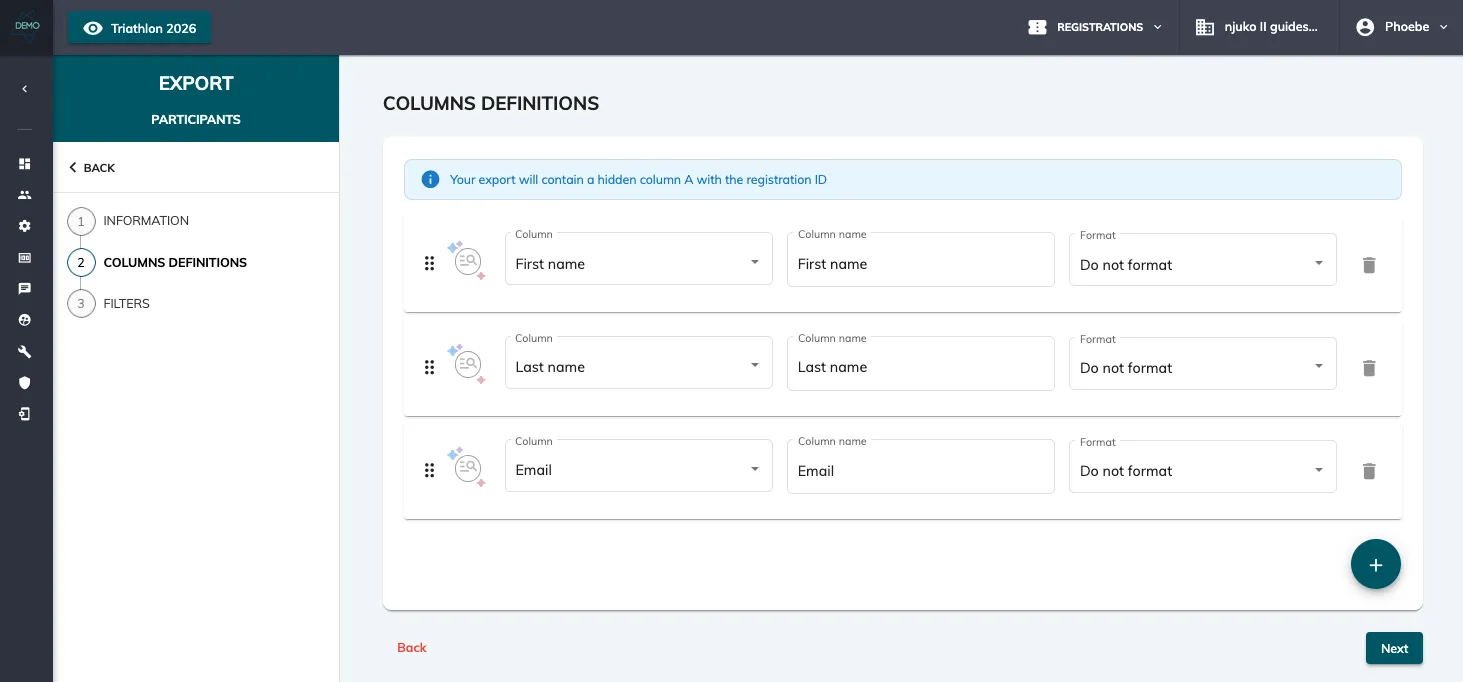
Define the export’s columns. Here you can add as many columns as you wish to have in your export (select the field, tag, metadata, etc. that you wish to export). You can also change the column name and sometimes edit the format.
1.3 Step 3
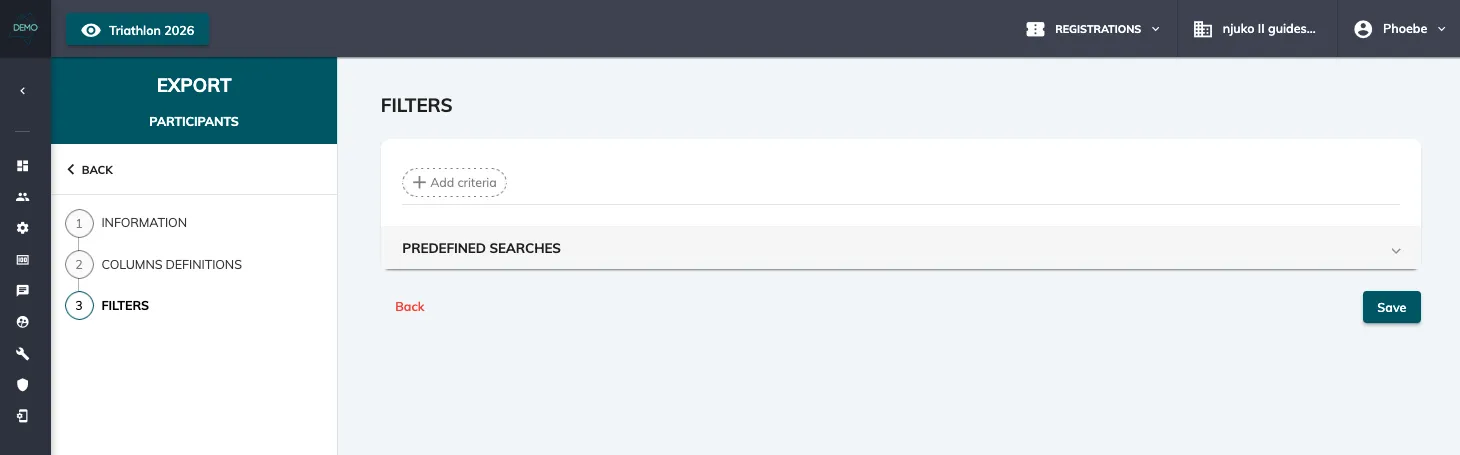
You can add filters to your export, to save you time each time you download the report. Simply click on “Add criteria” to add your filter.
2. Video guide
Here is a video guide to show you how to create a participant export: