How workflows work
How to manage your basic workflow for individual entry & edit registration journeys
1. What are workflows?
Workflows are a crucial tool to let you define the participant’s journey: decide exactly how many and which forms and steps you want to display to your participants, and in which order.
They are a simple way for you to tell the system which form to start with on the registration journey, add in forms as extra steps, add in a waiver, insurance, SSO integrations, and more.
2. How to create a workflow
Install the module Registration workflow manager:
In your edition, go to Setup > Workflows.
By default you’ll have a Registration Workflow and a Modification Workflow.
2.1 Registration Workflows
Your registration workflows are the workflows your participants, teams and groups will go through when they first register.
To create a new one, click on Add workflow > name your workflow > select Registration workflow.
Edit the workflow you have just created and click on Generate default workflow:
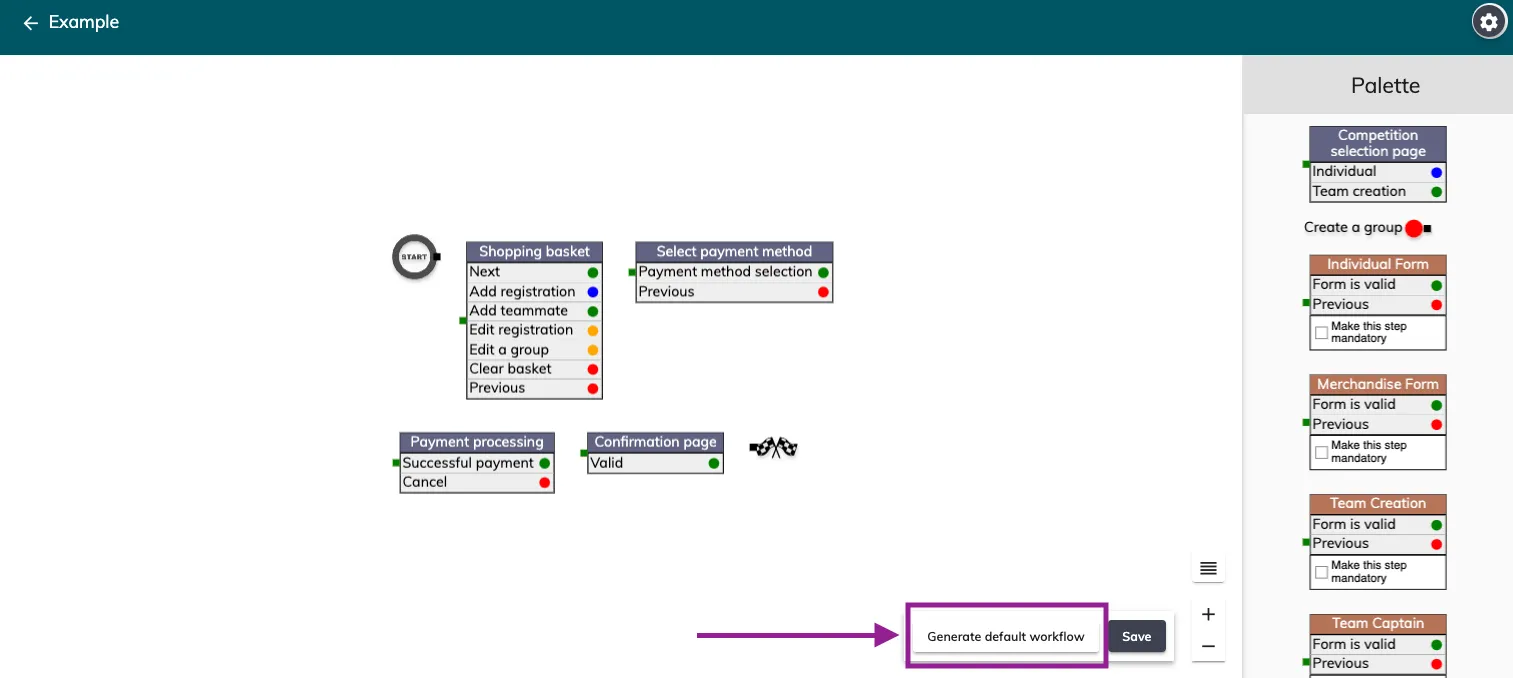
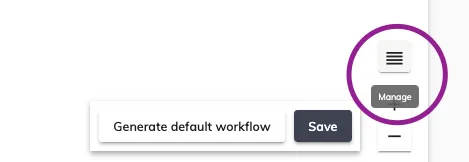
You can then click on Manage to align the boxes:
In the Palette on the right hand side, you’ll see all the extra steps and forms that can be added to your flow. Simply drag and drop to add one in.
Decide where you want it and create the arrows linking to it:
-
delete the forward arrow from the form you wish to precede it (click on the arrow and press backspace on your keyboard) > click on the green dot from that same form and drag the new green arrow to your added form.
-
click on the green dot in your new form and drag it to the next desired step.
-
link the previous buttons to the previous steps by clicking on the red dot and dragging the arrow to the box before it.
2.2 Post Registration Workflows
Your post registration workflows are the workflows your participants, teams and groups will go through when they edit a registration.
These work in the exact same way as your registration workflows, the only difference being that when you create a new workflow, you’ll select one of these three options:
-
Post registration workflow
-
Group modification
-
Team modification
3. How to skip steps in a workflow
If you wish to skip steps based on competitions, you can use our module Workflow - Skip steps per competition.
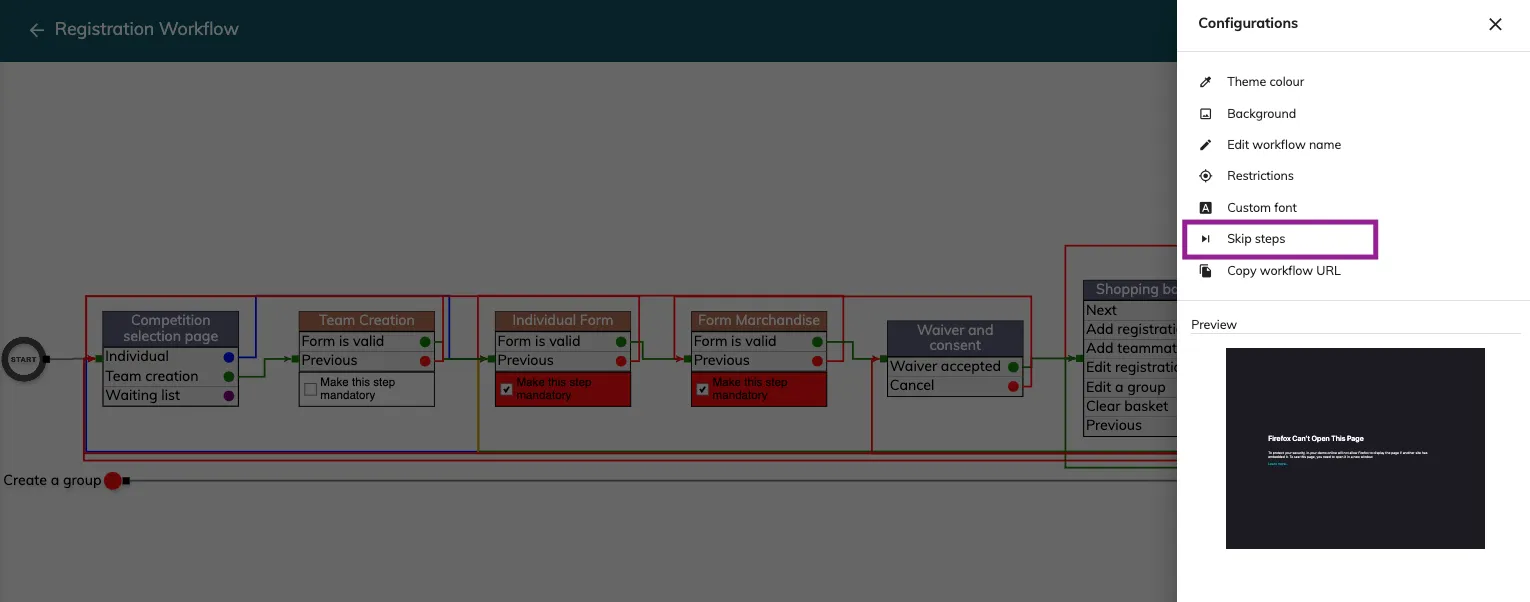
In your edition, go to Setup > Workflows > Edit workflow.
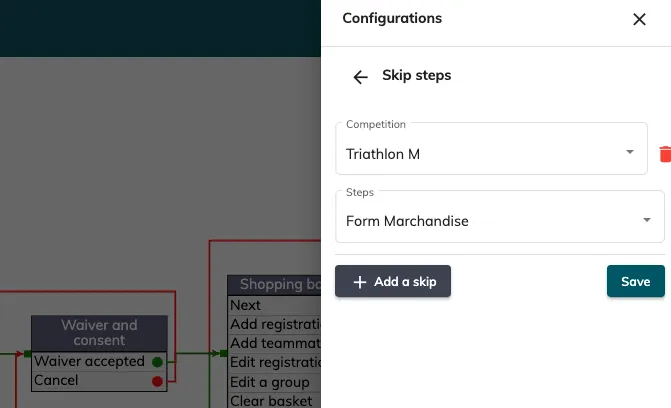
Click on the Actions Menu (top right) > Skip steps > Add a skip > Select a competition and the steps you want to skip > Save.
4. How to create conditional steps in a workflow
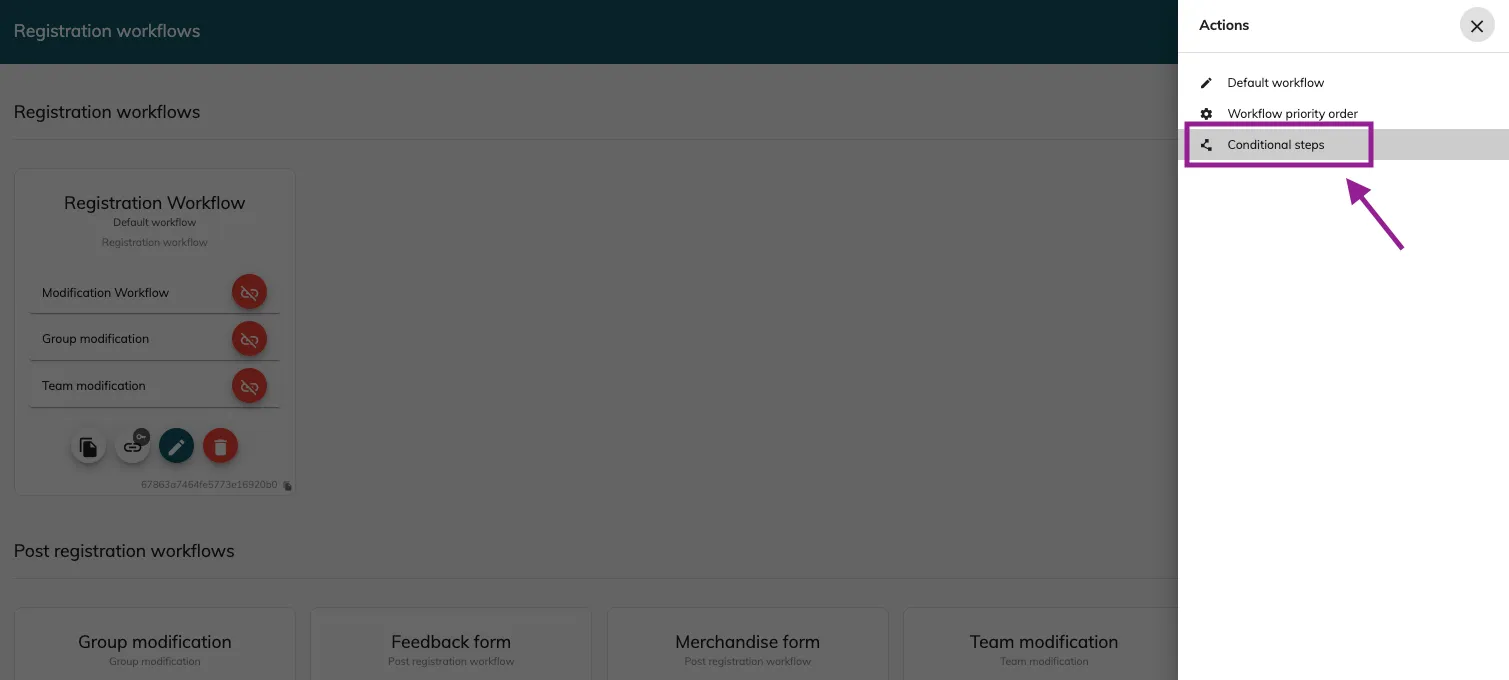
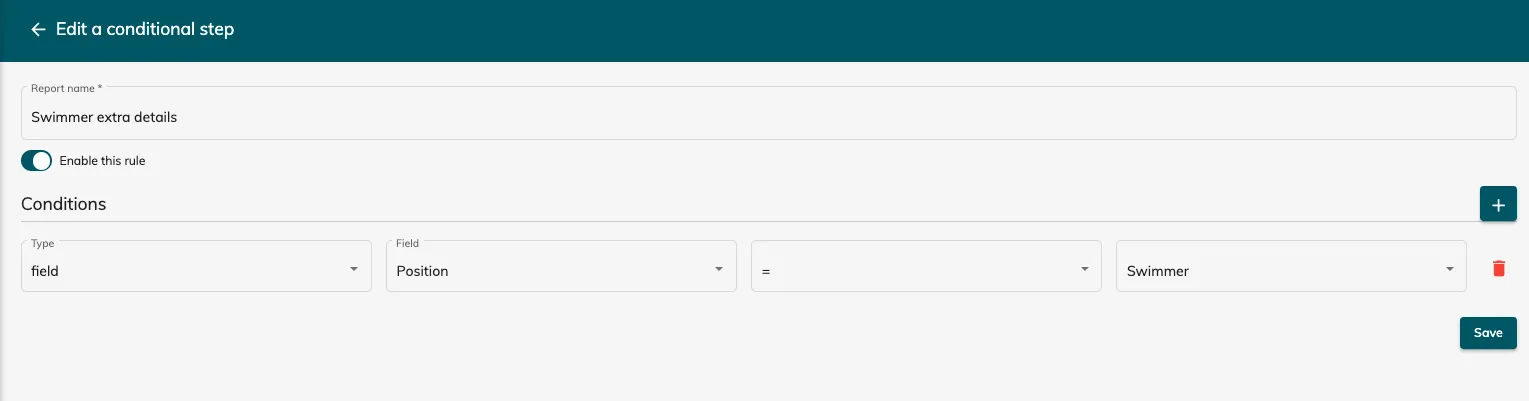
In Setup > Workflows > Settings (top right) > Conditional steps.
Click to the “+” button to create a conditional step.
Add the report name, choose to enable the rule and add your condition(s).
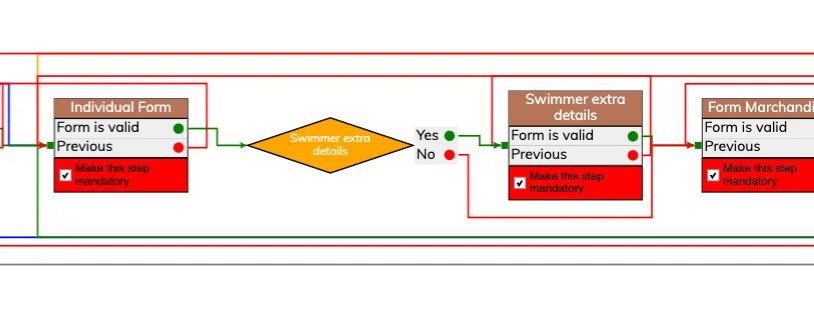
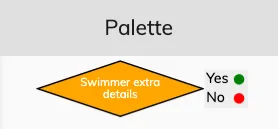
Edit your workflow, you’ll see a new diamond in the palette with your condition:
Drag the condition into your workflow, place it before the step you want conditioned, like this: