
How to use the Register Someone Else module
How to setup and use the register someone else feature: explanations on the form field, the waivers & consents, emails, workflow setup and more.
1. Why use this module
Do your participants tend to register friends or family members? If you are looking for a way to distinguish between people registering themselves or someone else, this module is for you. It will allow you to add a field into your individual form asking your participant who the registration is for - and will then enable you to create personalised registration flows based on their answer.
If registering someone else of legal age, your participant won’t need to sign the waivers and consents on their behalf, instead an automatic email can be configured to invite this person to sign them later.
2. How it works
Install this module from the Store:
The module will allow you to:
-
add a new field into your individual form
-
create one or multiple waivers and/or consents
-
create different experiences for participants registering themselves, someone else or someone else underage by displaying different fields, waivers and consents based on who is registering.
The field can be used as a stand-alone feature.
The waivers and consents can be used as a stand-alone feature.
2.1 New field in the individual form
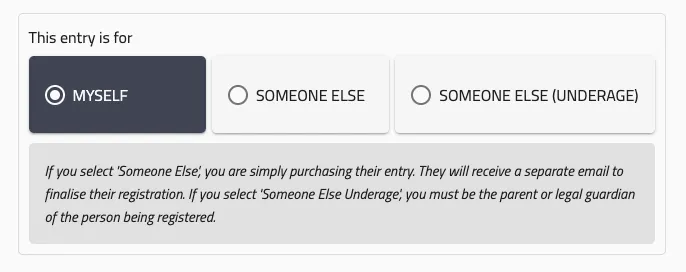
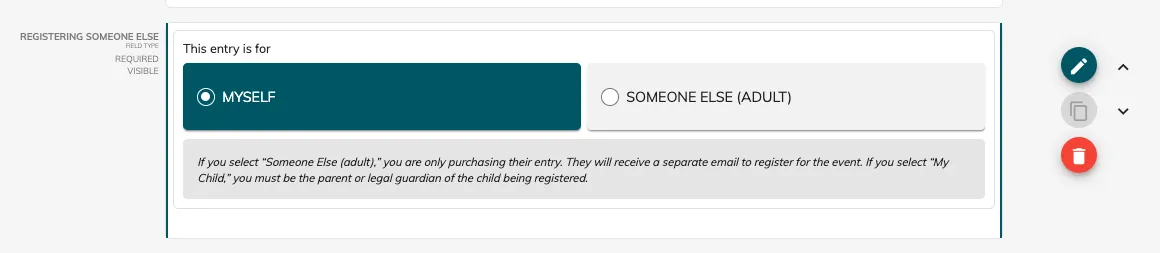
This module will allow you to add a new field to your individual form called ‘Registering someone else’. This field will allow you to ask your participant who they are registering and offer up to three different options (these options are defined in the ‘Waivers and consents’ section later):
-
MYSELF: they’re registering themselves and will need to complete the ‘Waivers and Consents’ step.
-
SOMEONE ELSE: they’re registering someone other than themselves and will not need to complete the ‘Waivers and Consents’ step.
-
SOMEONE ELSE (UNDERAGE): they’re registering a child and will need to complete the ‘Waivers and Consents’ step on the child’s behalf.
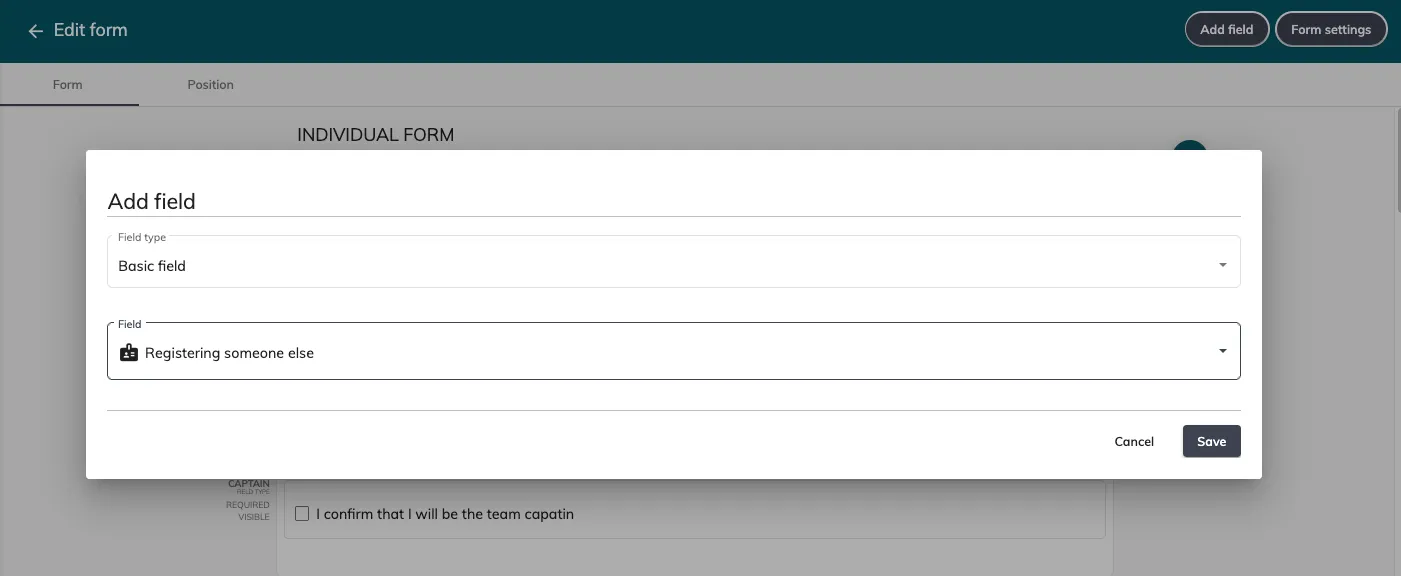
To add the field to the form, go to ‘Setup’ > ‘Forms’ > ‘Individual Form’ > ‘Add field’ > select ‘Basic field’ and ‘Registering someone else’:
2.2 Waivers and Consents settings
This module will also add a new ‘Waivers and Consents’ section under ‘Tools’ > ‘Waivers and Consents’.
Options tab
-
Signature - choose if you request a signature from the participant at the end of the ‘Waiver and Consents’ step to confirm their choices.
-
Waivers and consents options - choose if the participant needs to scroll through all the waivers and consents before they can accept them.
-
Use of the field ‘Register someone else’ - define if you’re using the field ‘Register someone else’ in the form.
-
If so, define the choices to display per competition (myself / someone else / someone else underage).
-
If not, define the default behaviour.
-
-
Mapping - map the date of birth field from your form, and define the legal age for your edition.
Waivers tab
Add all the waivers for this edition.
When adding a waiver, you can choose for which competitions it will be displayed and you can also add conditions based on form fields, metadata, etc.
Consents tab
Add all the consents for this edition.
You can choose whether a consent is mandatory and specify display criteria based on the competition or by defining conditional logic.
Positions tab
Determine the order in which you want the waivers and consents to be displayed.
2.3 Add Waiver and Consents to workflows
Once you have created your waivers and consents, you’ll need to add them to the relevant workflows to make sure your participants see them.
Go to ‘Setup’ > ‘Workflows’ > Edit the registration workflow and add the ‘Waivers and consents’ step somewhere between the individual registration form and the shopping basket.
Repeat the process for the modification workflow(s).
2.4 Create the consent validation email
For participants of legal age who have been registered by someone else, they’ll need to return to the form to accept the waivers and consents, and perhaps to fill out further details in the form.
For this, you’ll need to create a new email under ‘Communication’ > ‘Emails’.
Create a new email with these settings:
-
Recipient: Registered
-
Email type: Consent validation post reg
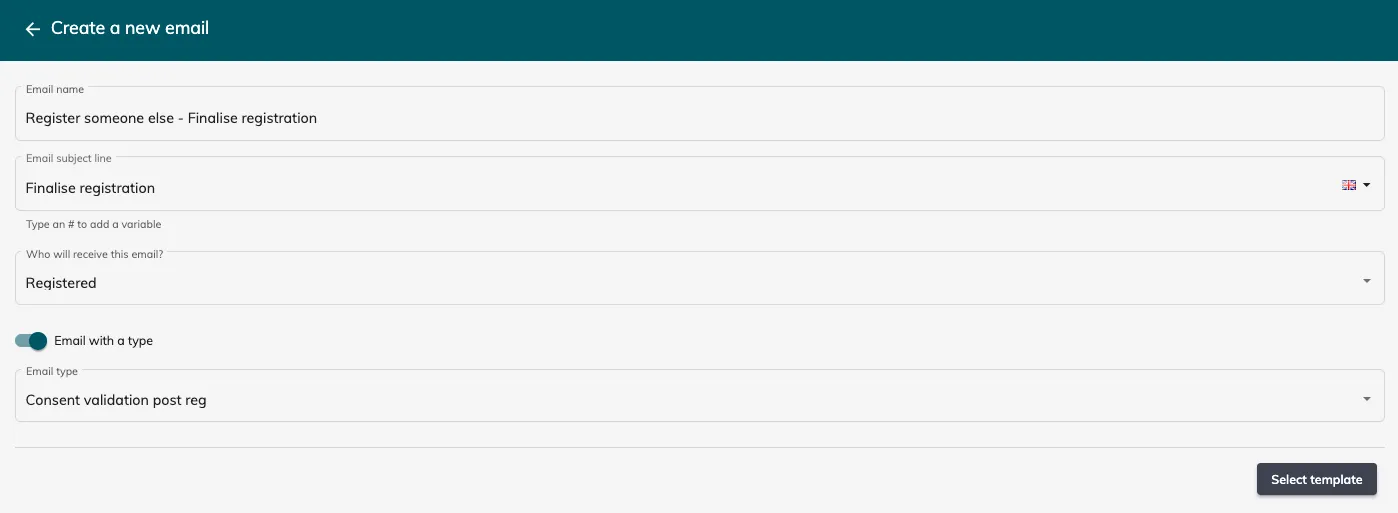
In the email content, you can decide to add one of these two variables:
-
[[consent_validation_link]] this will generate a link to send the participant directly to the waivers and consents step, without going through the form.
-
[[claim_registration_link]] this will generate a link to send the participant to the default modification workflow where they can complete the missing form steps and agree to the waivers and consents.
2.5 Registration confirmation email rules
If you have an email with the type ‘Registration confirmation email’ in your email list, this email will automatically be sent to all new registrations. This includes participants who have been registered by someone else, even if they need to come back to complete the form and sign the waivers and consents.
Therefor, we recommend you create another registration confirmation email dedicated to the participants registered by someone else:
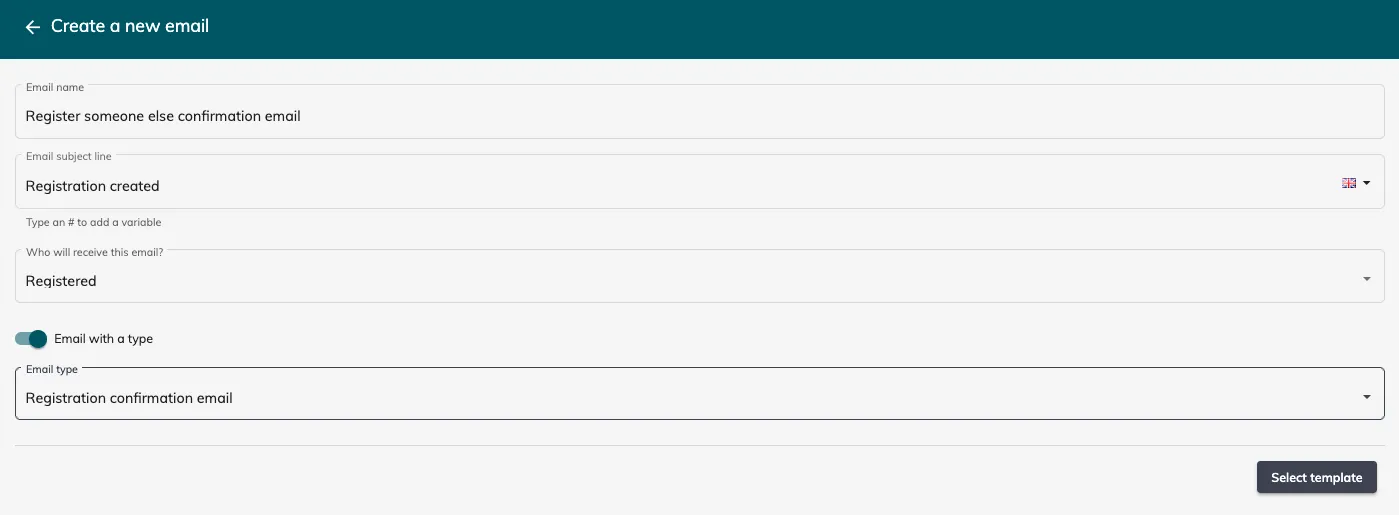
You could write something along these lines:
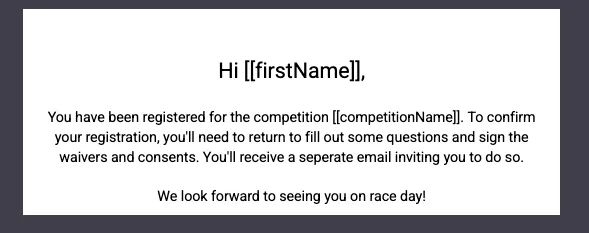
Once this email has been created, you’ll need to create email rules for your two (or more) registration confirmation emails.
Head to ‘Communication’ > ‘Email rules’ > ‘Add an email rule’.
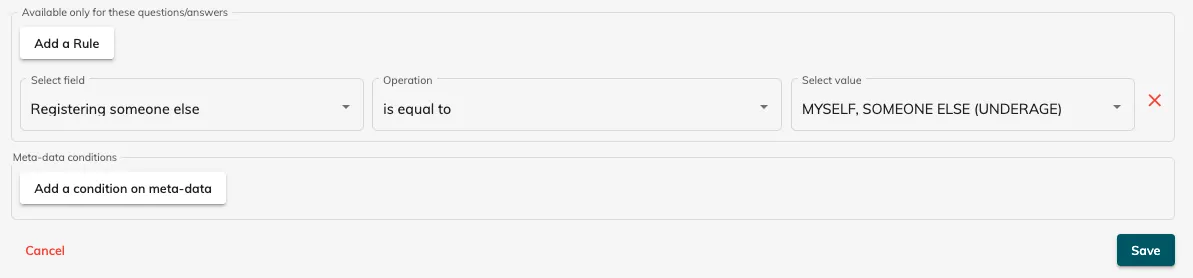
- Email rule #1: create an email rule to send the standard confirmation email to participants who register themselves or their children. These are the settings you’ll need in the rule:
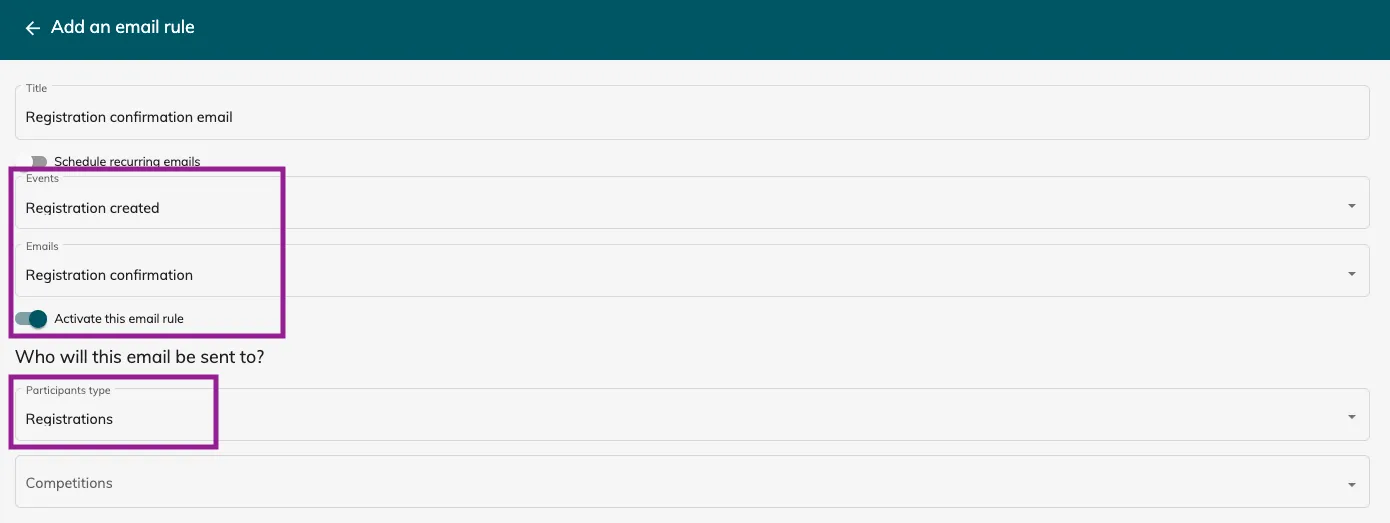
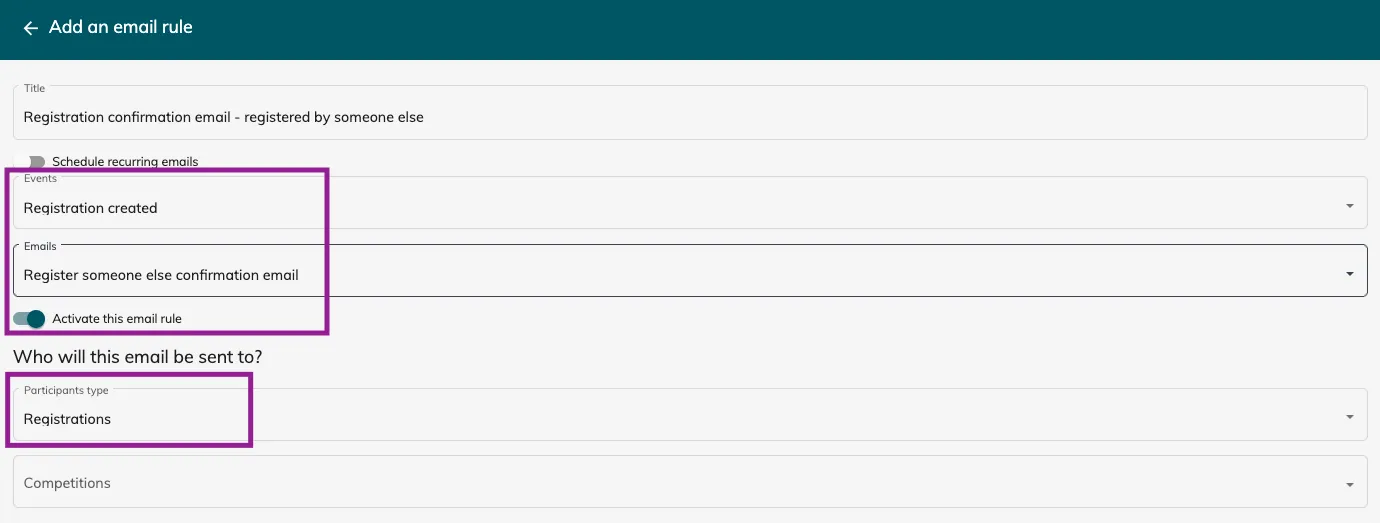
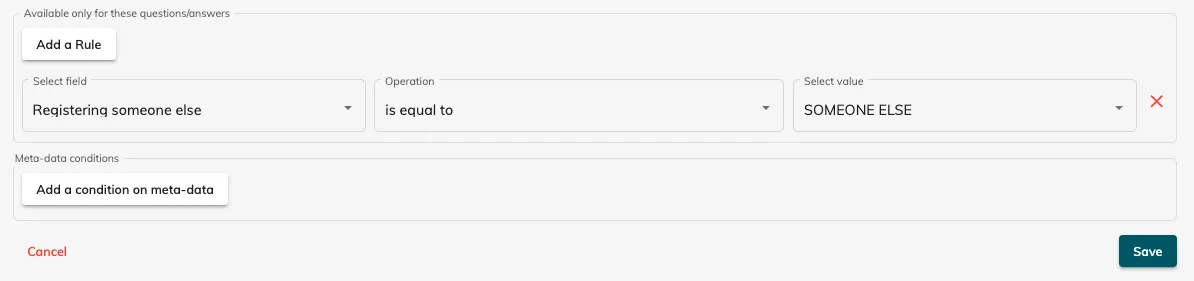
- Email rule #2: create an email rule to send the newly created confirmation email to participants who were registered by someone else. These are the settings you’ll need in the rule:
2.6 Special case: using SSO
If SSO (Single Sign On) is enabled and required to register for a competition, when a participant is registered as ‘Someone else’ and clicks on the ‘Claim registration’ link in the email:
-
The participant will need to login (or create an account) to complete their registration form and validate the ‘Waiver and Consents’ step.
-
The first and last name entered during registration must match the ones from the account, otherwise the participant will be blocked.
-
If the participant creates a new account, an email address different from the one entered during registration will also block validation.
-
The information entered during registration will not be replaced with data from the account.
-
Certain fields not completed during registration will then be completed with information from the account.
3. Your questions
3.1 Does it work with SSO ?
Yes, if SSO is enabled and required to register for a competition, when a participant is registered as ‘Someone else’ and clicks on the ‘Claim registration’ link (only with WTC SSO):
-
The participant must log in (or create an account) to complete their registration form and validate the ‘Waiver and Consents’ step.
-
The first and last name entered during registration must match those on the account, otherwise the participant will be blocked.
-
If the participant creates a new account, an email address different from the one entered during registration will also block validation.
-
The information entered during registration will not be replaced with data from the account.
-
Fields not completed during registration will then be completed with information from the account.
3.2 Could a participant validate the waiver and consent for someone else?
No, the participant registered by someone else will receive an email to validate the waivers and consents themselves.
3.3 Does the registration status show as ‘is complete’ if the waivers and consents are not validated?
It depends on the tag allocation you have built for the category ‘Registration status’. You can easily add a criteria Metadata ‘waivers and consents complete’ = yes
3.4 What is the difference between a waiver and a consent?
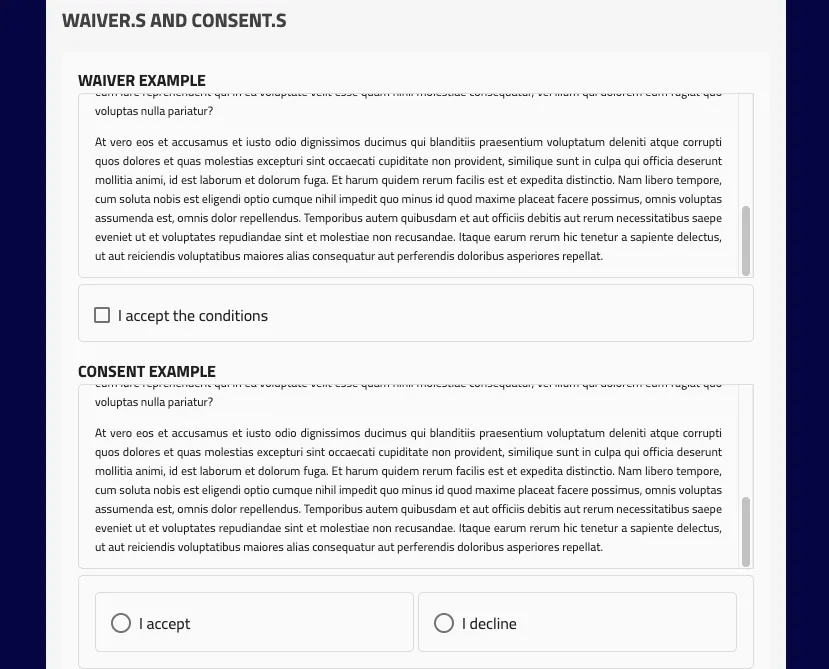
A waiver is displayed as a checkbox that is mandatory to accept to go to the next step.
A consent could be accepted or declined.
3.5 Can I use the waivers and consents without the field register someone else?
Yes of course, you need to tick NO in the settings at the question ‘I’m using the field ’Register someone else’. You’ll then just need to add the step Waivers and Consents to your workflow.
3.6 Can I use the field register someone else without using the waivers and consents?
Yes of course, simply ignore the ‘Waivers and consents’ section and leave them out of your workflows.