
How to create a participant registration form
Discover what an participant registration form is and how to customise it.
1. What is an participant registration form
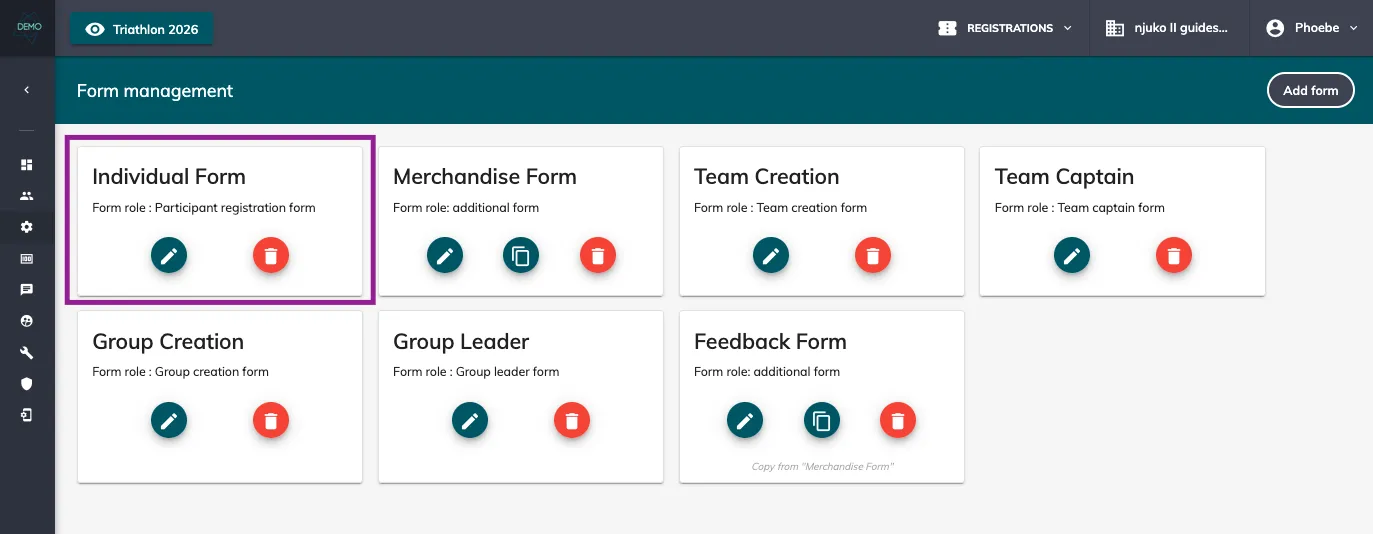
The Participant Registration Form will be in your edition by default when you start from scratch, it’s the main participant registration form. This is the form needed to collect the essential data to create a registration in the system: first name, last name and email. These three fields are called system fields and cannot be deleted. You can customise this form by adding more fields and changing their order.
2. How to customise a participant registration form
To setup an individual registration form, go to Setup > Forms > Edit the form with the role Participant registration form.
2.1 Installing modules
On top of the basic fields that you will find in your edition’s forms when you start from scratch, we have many other field types which you can discover in the Store. For this, head to the Store, filter by your edition and use the search bar to look up “form field”.
You can reference the lists in section 4 of this article to see what extra fields exist. If you are unsure of what a module does, you can click into it to view the full description.
Once your modules have been installed, start building your form. Head back to your edition, edit the individual form and start building!
2.2 Adding a field
Click on Add field to add as many fields as you need:
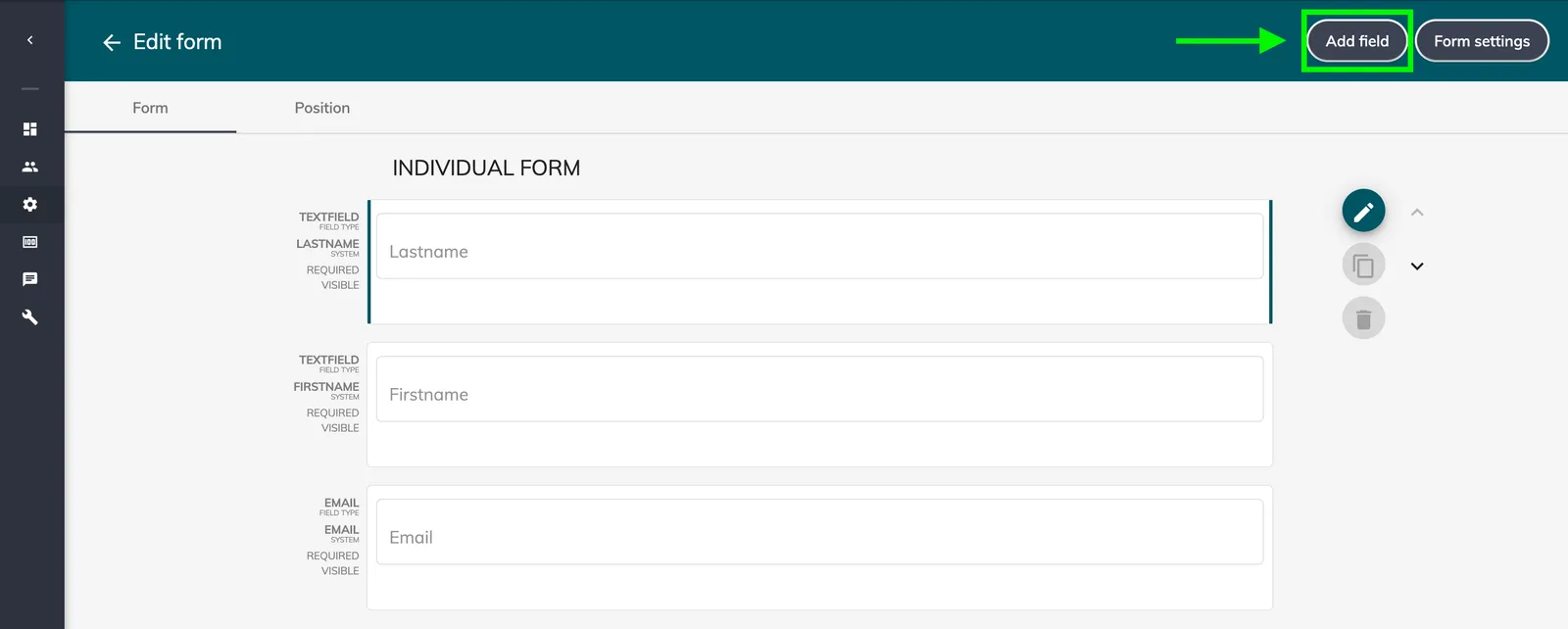
When adding a field, select “basic field” then choose the field you want to add.
2.3 Ordering your fields

Use the Position tab to edit the order of your fields:
2.4 Editing a field
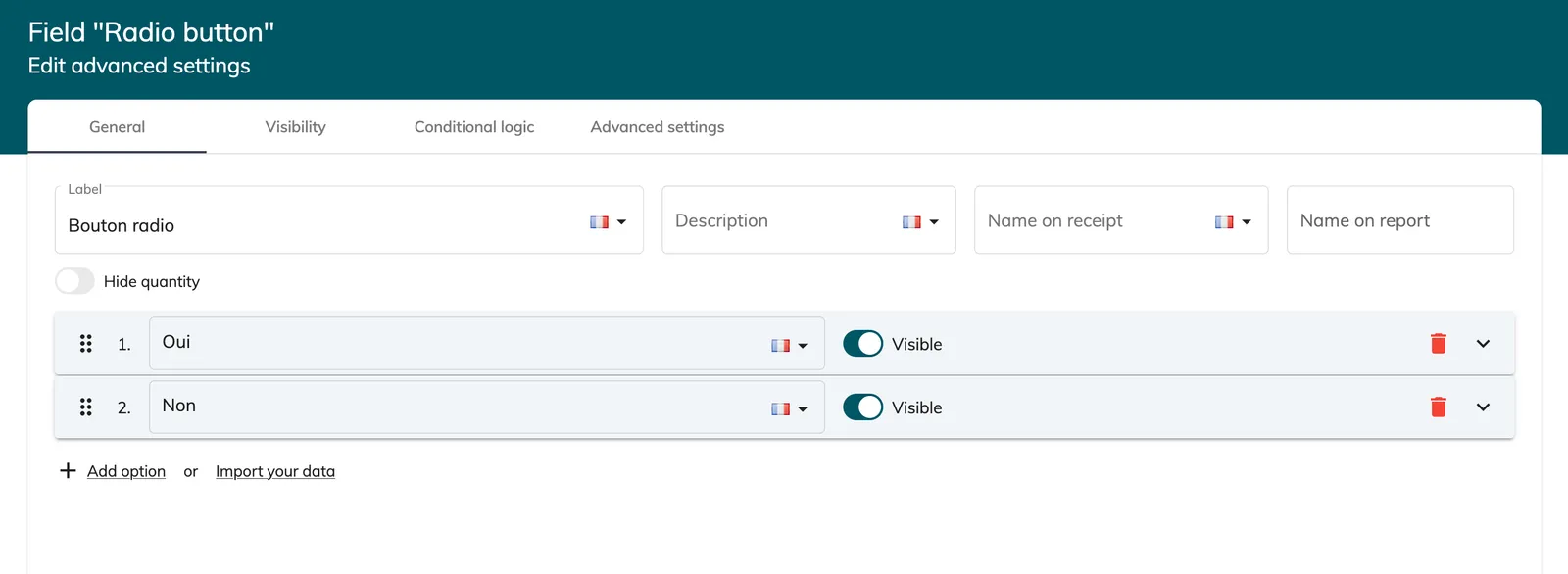
When your fields have been added, you can edit each field by clicking on the pencil icon to the right of the field. You’ll have different editing options depending on the field type.
-
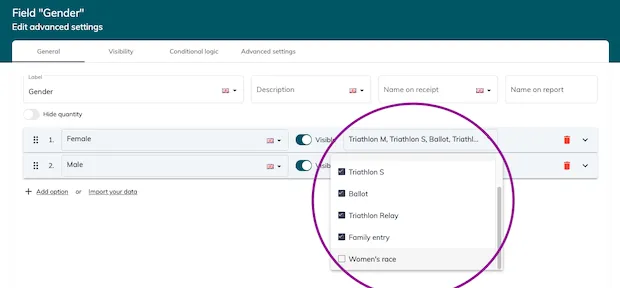
In the General tab, you can change the Label, the Description, the Name on receipt, the Name on report and you’ll sometimes have more settings, such as defining your options.
For option fields, you can set prices, quantities, report names, and you can filter each option by competition so as to display the correct options to the correct competitions.
-
In the Visibility tab, you can define for which competitions this field is visible, if it’s required or editable, visible only to the organiser, unique, and you can even define a date range when the field will be visible.
-
In the Conditional logic tab, you can use logic to define when a field is displayed.
-
In the Advanced settings tab, you can set validation rules, add an informative message to your field, and there may be more options here.
3. Extra fields that can be added
On top of the basic fields that you will find in your edition’s forms when you start from scratch, we have many different field types which you can discover in the Store.
Here is a list of modules you can add to your edition in order to have extra form field types:
-
Form field - Accordion style content
-
Form field - Advanced multi selector
-
Form field - Carousel images & videos
-
Form field - Choose own bib number
-
Form field - Country selector
-
Form field - Customise your own countries list
-
Form field - Donation
-
Form field - Duration Time Picker
-
Form field - Estimated time
-
Form field - Marketing opt ins
-
Form field - Membership validation
-
Form field - Nationality selector
-
Form field - Phone number
-
Form field - Randomised charity selector
-
Form field - Shop commerce item
-
Form field - Start wave manager
-
Form field - Team category
-
Form field - Team name for individual entries
Here are modules linked to an integration:
-
Form field - Codice fiscale Italia
-
Form field - FFCT license
-
Form field - FFSKI license
-
Form field - French athletics member validation
-
Form field - Google Addres (your keys)
-
Form field - Google Address (njuko’s keys)
-
Form field - iDonate
-
Form field - JustGiving charity SSO
-
Form field - JustGiving unclaimed charity page
-
Form field - Loqate (njuko API) address lookup
-
Form field - Loqate address lookup (Custom API keys)
-
Form field - Postcode.nl Address selector
-
Form field - UKA club list
-
Form field - UKA license number validator
Here are modules to add fields to a group type form:
-
Form field - Group reserved places
-
Form field - Group type
-
Form field - Invoiceable groups