
Protect your account with Multi-Factor Authentication (MFA)
Add an extra layer of security to your account by enabling Multi-Factor Authentication (MFA).
Multi-Factor Authentication helps protect your account by requiring an additional verification step when you log in.
Once enabled, logging in requires both:
-
your password
-
a temporary verification code generated by an authenticator app
This significantly reduces the risk of unauthorised access to your account.
1. Why enable MFA?
Passwords alone are no longer sufficient to secure online accounts.
By enabling Multi-Factor Authentication, you ensure that only you can access your account, even if your password is compromised.
MFA helps protect:
-
your njuko account
-
your event configuration
-
your participant data
-
your financial information
Enabling MFA is a quick and effective way to strengthen your account security.
2. How to activate Multi-Factor Authentication
Follow these steps to enable MFA on your account.
Step 1 — Open your profile settings
When logged into your njuko account:
-
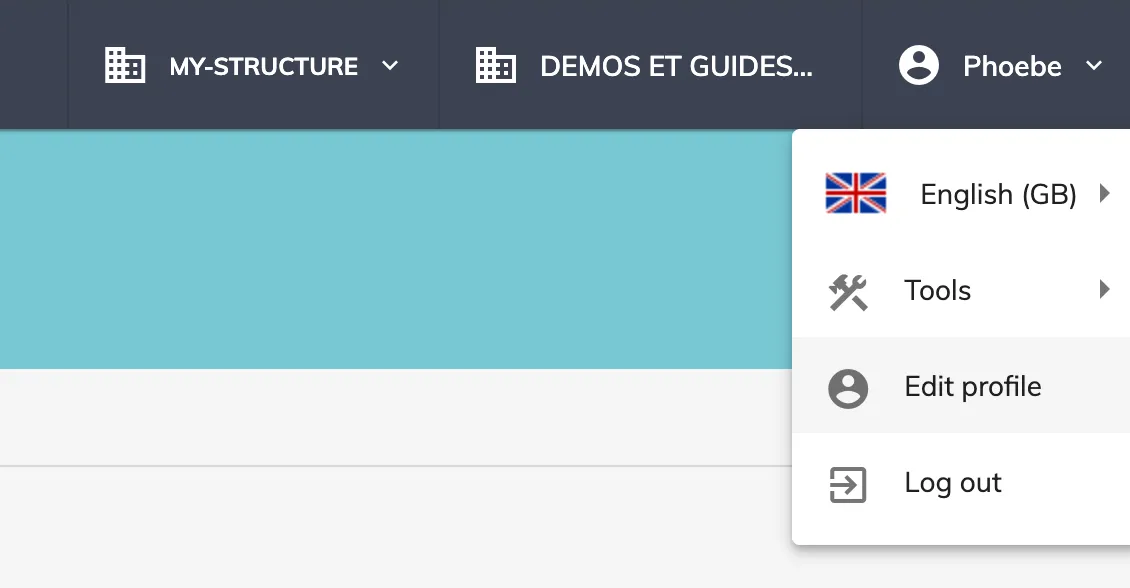
Click your name in the top-right corner
-
Select Edit profile
-
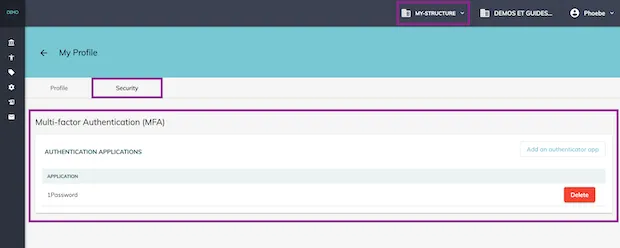
Open the Security tab
Step 2 — Add an authenticator app
You will then be guided through the setup process to connect an authentication app to your account.
This involves:
-
Installing one of these authenticator apps on your phone (if you do not already have one)
-
Google Authenticator
-
FreeOTP
-
Microsoft Authenticator
-
-
Opening the app and scanning a QR code
-
Entering the app name and the verification code generated by the app
Once completed, MFA will be enabled for your account.
Each time you log in, you will be asked to enter a temporary verification code generated by your authenticator app.
3. If you lose access to your authenticator app
If you lose access to your authenticator device, please contact our support team so we can securely reset MFA access to your account.
4. Best practices for account security
To keep your account and event data secure, we recommend the following best practices:
-
Enable Multi-Factor Authentication (MFA) for all users with access to your structure, especially administrators and finance roles.
-
Use a strong, unique password that is not used on other websites.
-
Do not share accounts — each team member should have their own login.
-
Review user access regularly and remove accounts that no longer need access.
-
Be cautious of suspicious emails asking for login details.
Following these simple steps helps protect your account, your participants’ data, and your event configuration.
If you need assistance activating Multi-Factor Authentication, our team will be happy to help.