
Automate emails with email rules
Automatically send emails based on timing, events, or participant data.
1. What are email rules?
Email rules allow you to automate email sending based on:
-
A specific event (e.g. registration created)
-
A scheduled date
-
A recurring schedule
They are used for emails without a predefined type or to create custom logic.
2. Create an email rule
Go to:
Communication → Email rules → Add an email rule
Configure your rule:
-
Name your rule
-
Choose a trigger:
-
Event-based (e.g. registration created)
-
Scheduled (specific date/time)
-
Recurring
-
-
Select the email to send
-
Activate or deactivate the rule
3. Define recipients and conditions
In “Who will this email be sent to?”, you can:
-
Target all participants
-
Add conditions based on:
-
Competitions
-
Tags
-
Form answers
-
Metadata
-
This ensures emails are sent to the right audience only.
4. Common use cases
4.1 Send race information before the event
-
Create an email (no type, recipient = registered)
-
Create a rule with a scheduled date (e.g. 1 week before race day)
4.2 Send information to late registrations
-
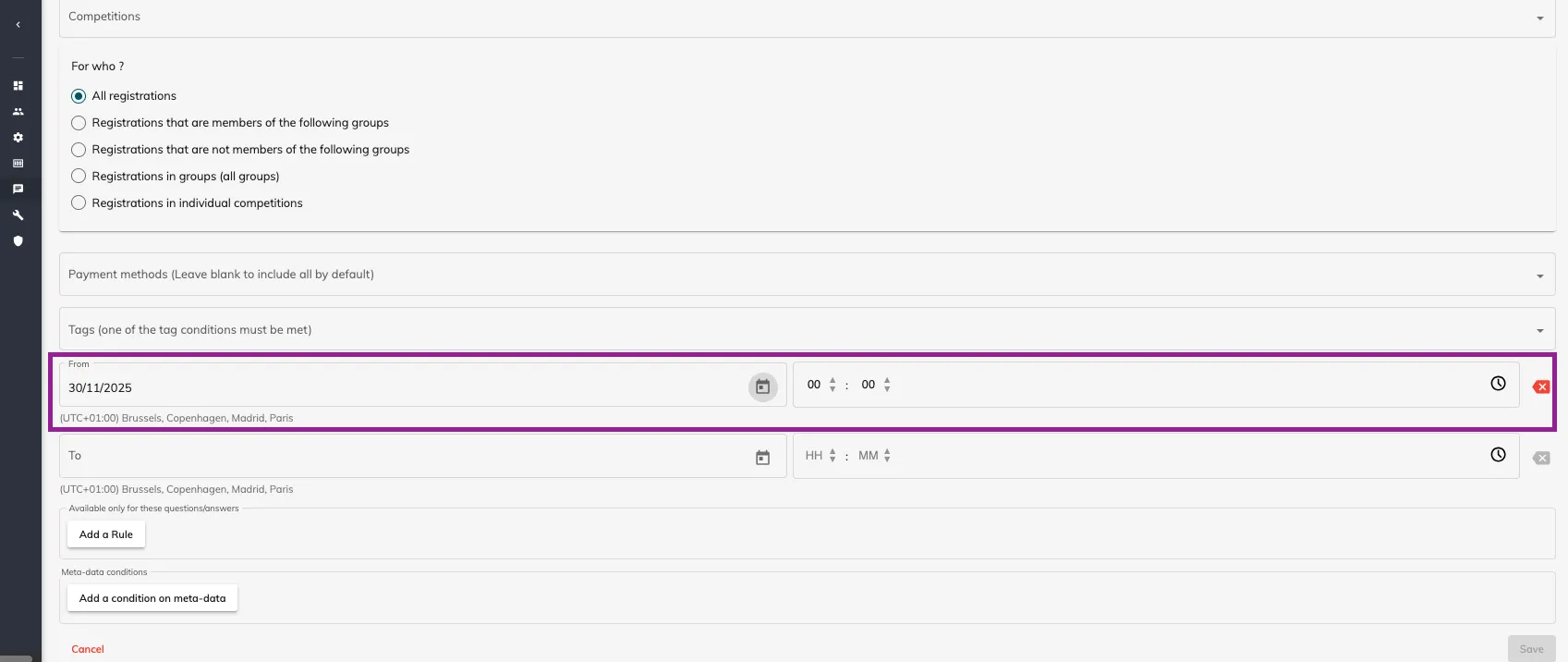
Create a rule with trigger: Registration created
-
Add a start date condition
-
This ensures new participants still receive key information
4.3 Remind participants to complete their registration
-
Filter by participants with an “incomplete” tag
-
Schedule a reminder email
4.4 Upsell additional products (e.g. merchandise)
-
Create a recurring rule
-
Add a condition based on a form field (e.g. has not purchased item)

4.5 Send different confirmation emails per competition
-
Create separate confirmation emails
-
Create one rule per competition
-
Add a condition to match each competition
5. Key best practices
-
Always test your emails before activating rules
-
Use clear naming conventions for rules
-
Avoid overlapping rules sending duplicate emails
-
Combine rules with tags and conditions for better targeting