
Send mass email campaigns
How to send mass email campaigns.
1. Why use mass email campaigns
Mass email campaigns will allow you to send an email to all, or a selected group, of participants, and view open rates post send.
If you have over 500 participants in your edition, this will be the preferred way to send them emails.
2. How to create an email campaign
Install the module Mass email campaign sender:
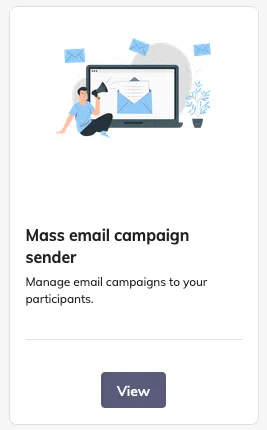
In your edition, go to ‘Communication’ > ‘Mass email campaigns’ > ‘Create an email campaign’.
Complete the 4 campaign configuration steps.
2.1 Step one: settings
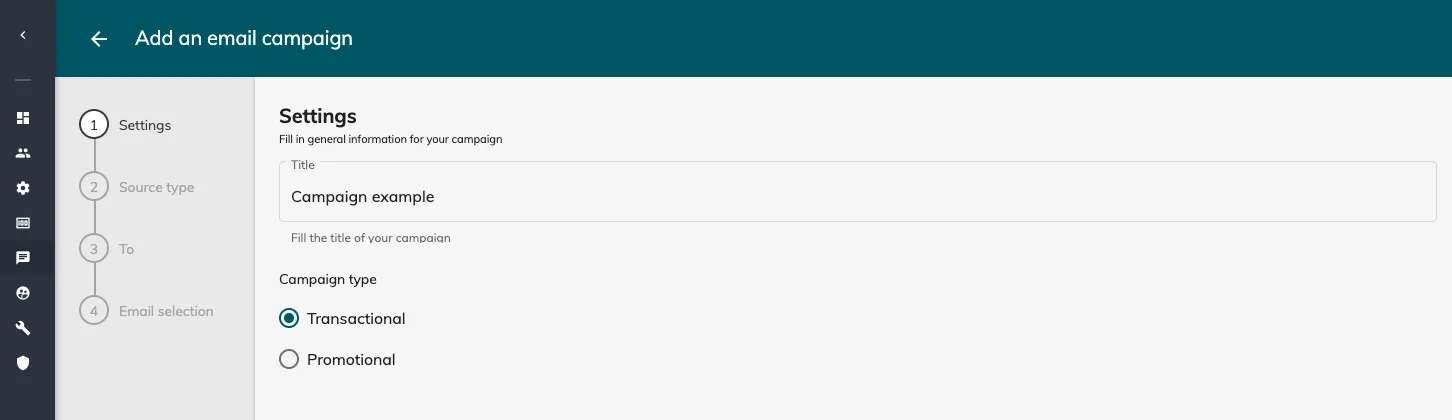
Add your campaign title and choose the type:
-
Transactional: the email contains information about the event and won’t include an unsubscribe link.
-
Promotional: the email contains promotional content, in which case a link will automatically be added to the bottom of the email, so the participant can unsubscribe from the list. If they unsubscribe, they will no longer receive promotional email campaigns from this edition.
2.2 Step two: source type
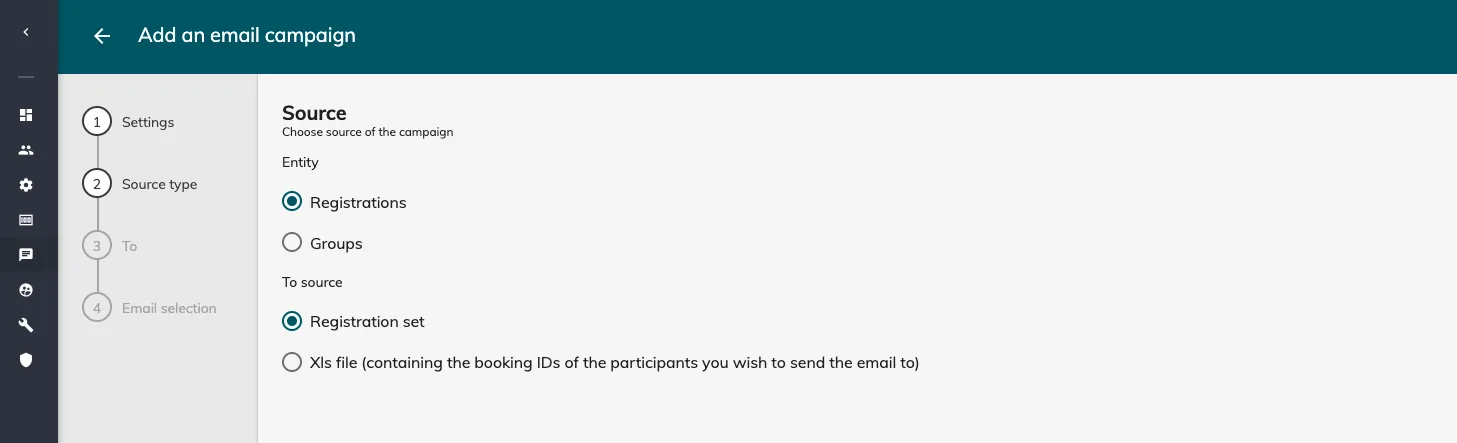
Choose to send the campaign to registrations or groups.
If you are sending the campaign to registrations, you have the choice between:
-
selecting a registration set directly within the platform
-
uploading an excel file with the list of participant IDs
2.3 Step three: destination
Define who you’ll be sending this campaign tool.
You can add rules based on answers to form fields.
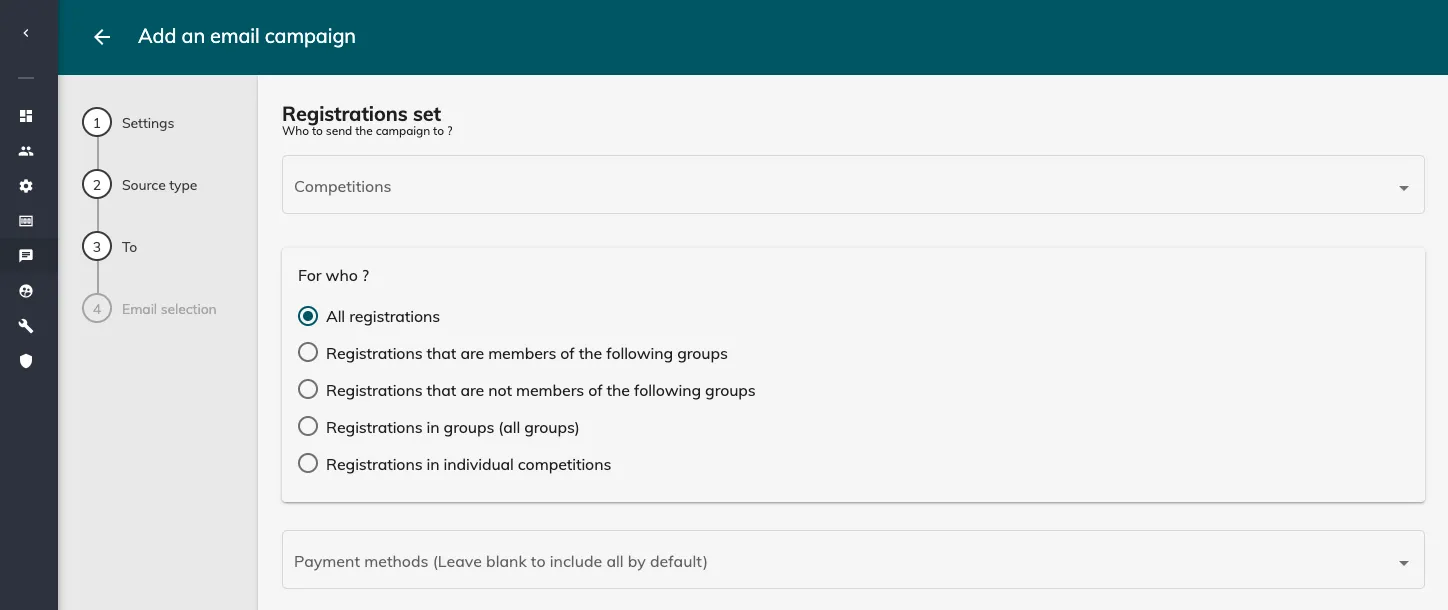
Emails will only be sent to registered participants with the status = TRUE. They will not be sent to:
-
registered participants with the status = FALSE
-
deleted participants
-
cancelled participants
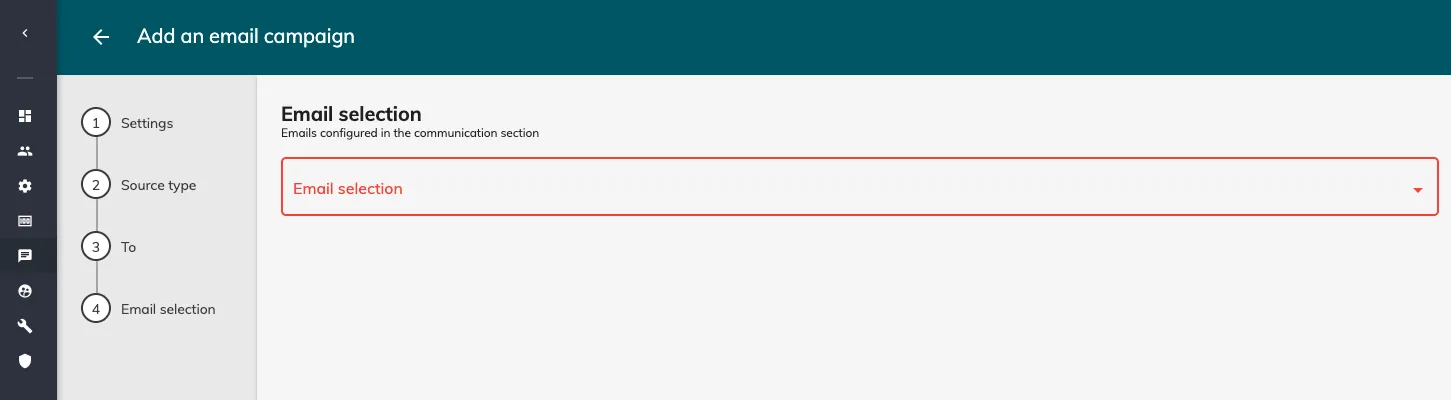
2.4 Step four: email to send
Select the email you wish to send for this campaign.
3. How to send an email campaign and view statistics
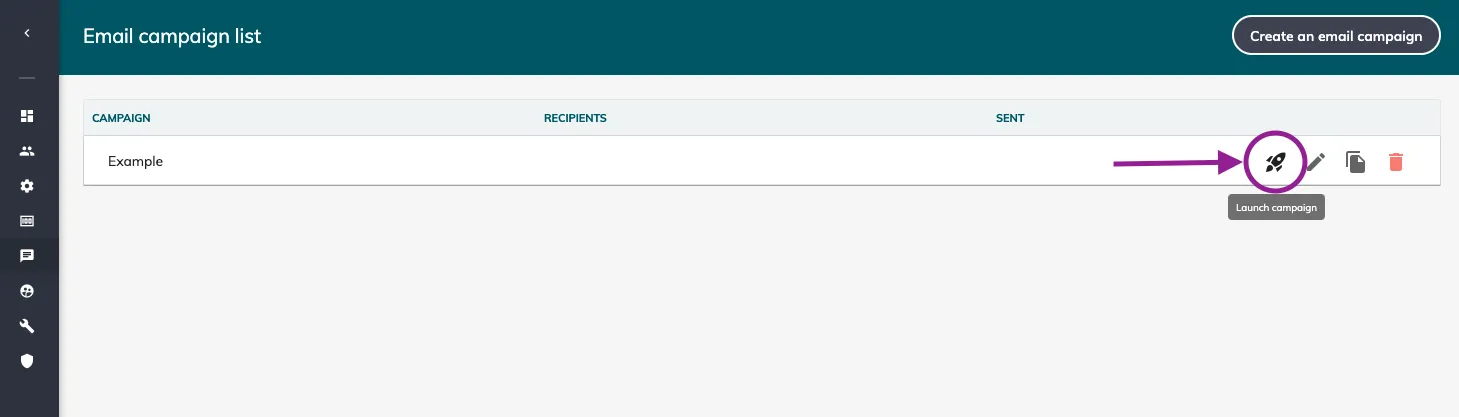
To launch the campaign, click on ‘Launch campaign’ in the list:
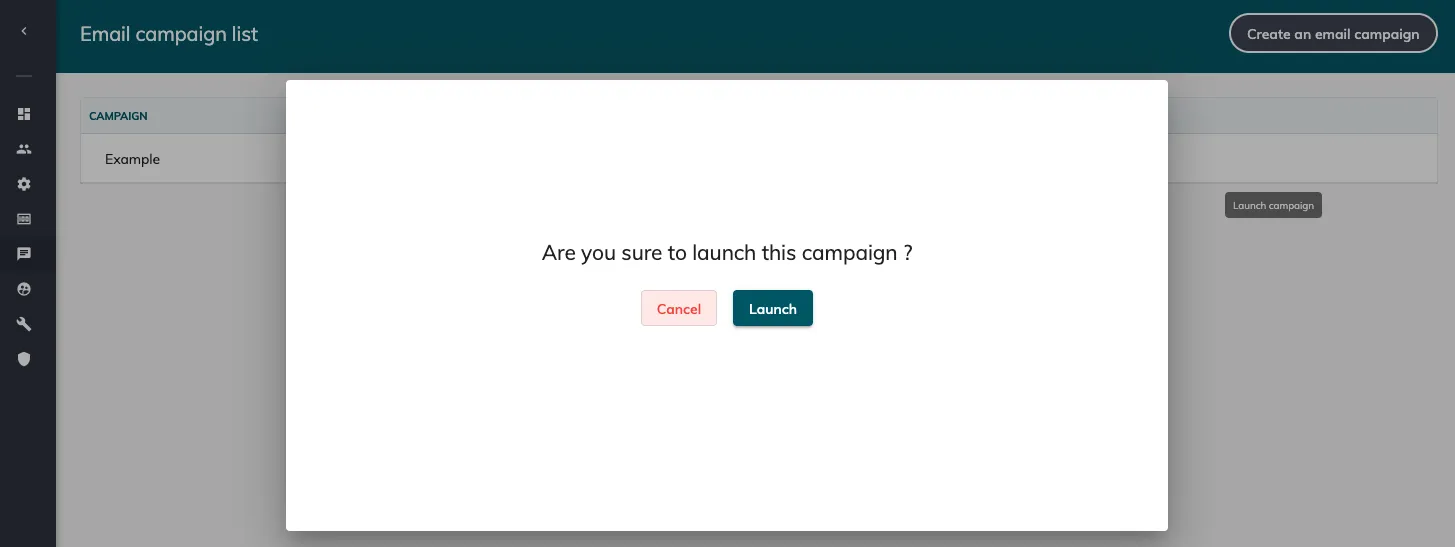
A pop-up window will appear asking you if you are sure:
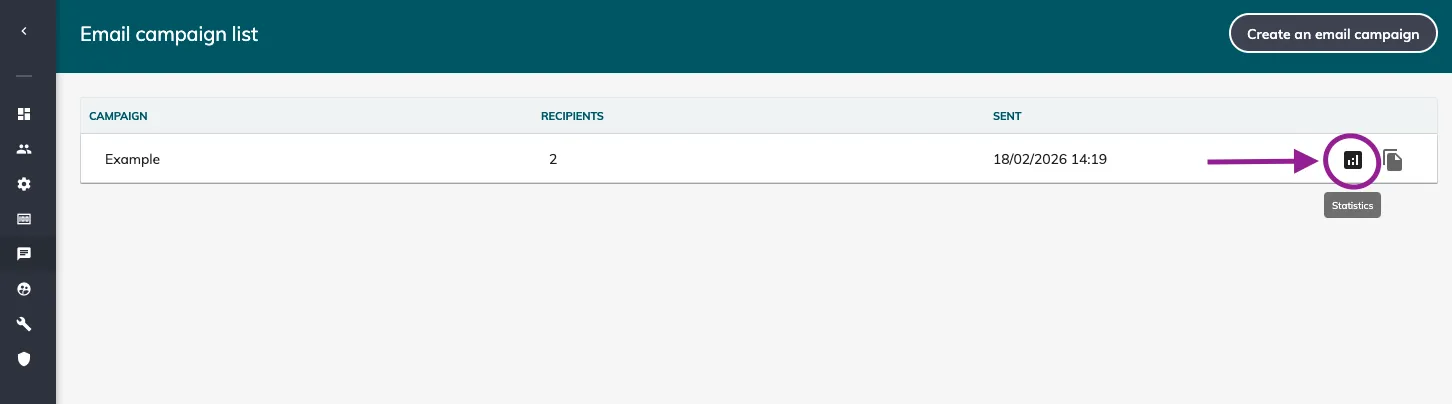
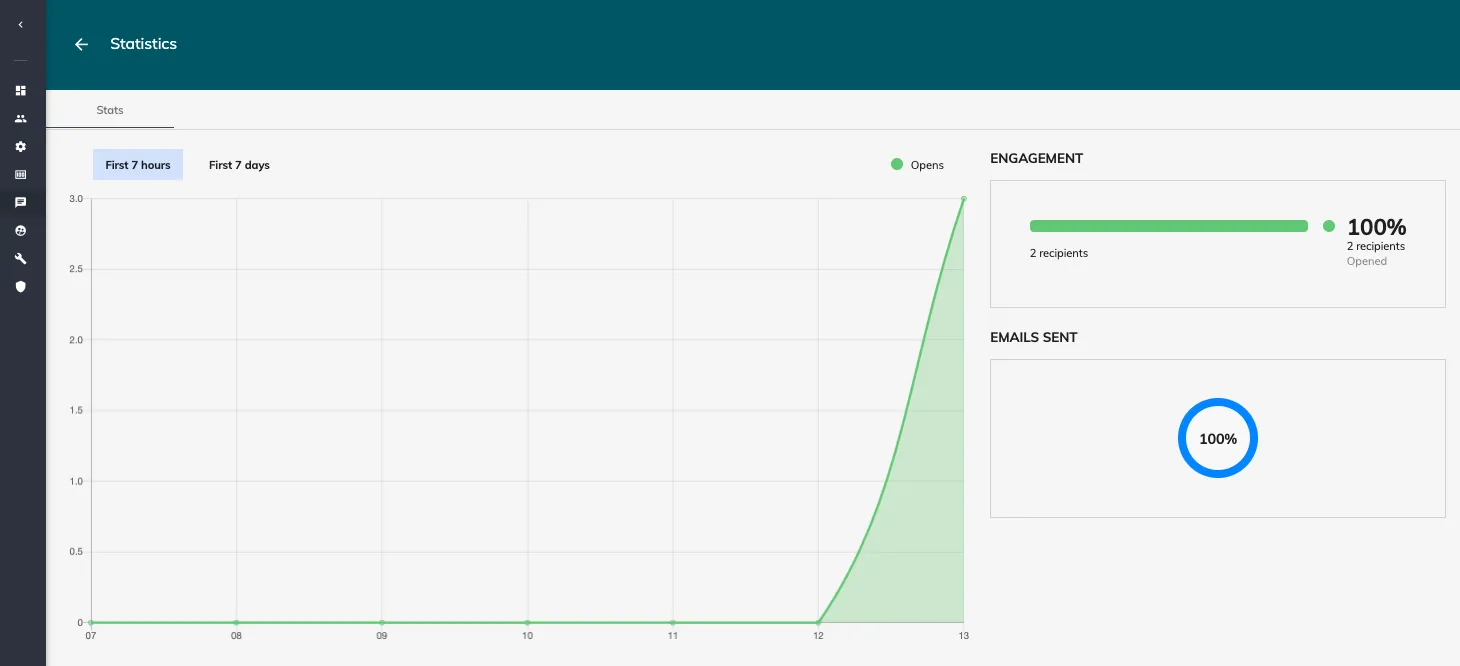
To view the campaign statistics, click on ‘Statistics’:
4. Video guide
Watch this video guide for a detailed explanation on how to send mass email campaigns from your edition: