
Google Tag Manager Tracking - Custom data layer mapping
How to use our integration with Google Tag Manager (GTM) using the custom data layer mapping module.
1. What is Google Tag Manager
Google Tag Manager lets you manage all tracking tags (such as Google Analytics, Facebook Pixel, etc.) from a single interface. You can set up and manage your tags through the Google Tag Manager web-based user interface.
GTM can be compared to an advanced ‘camera system’ that observes visitors when they enter your store and notifies your ‘partners’ (such as Google Analytics, Google Ads, or Meta) about what those visitors do.
The integration supports the following platforms and capabilities:
-
Google Analytics 4 (GA4)
-
Google Ads Enhanced Conversions
-
Meta Enhanced Match (or Advanced Matching)
-
First Party data for Server-Side Tracking
The data layer acts as the single source of truth for all tracking. It ensures consistent data collection, long-term stability, and future-proof measurement.
Learn more about GTM here.
2. How to set it up in your edition
2.1 Step by step guide
Step 1
Install the module ‘Google Tag Manager Tracking - Custom data layer mapping’.
When GTM is installed in your edition, we will be able to communicate with the Tag Manager servers.
Step 2
In your edition, go to ‘Tools’ > ‘Google tag Manager’ > Fill in the ‘Google container ID’ field.
Step 3
Customise the Data Layer section by adding as many parameters as needed.
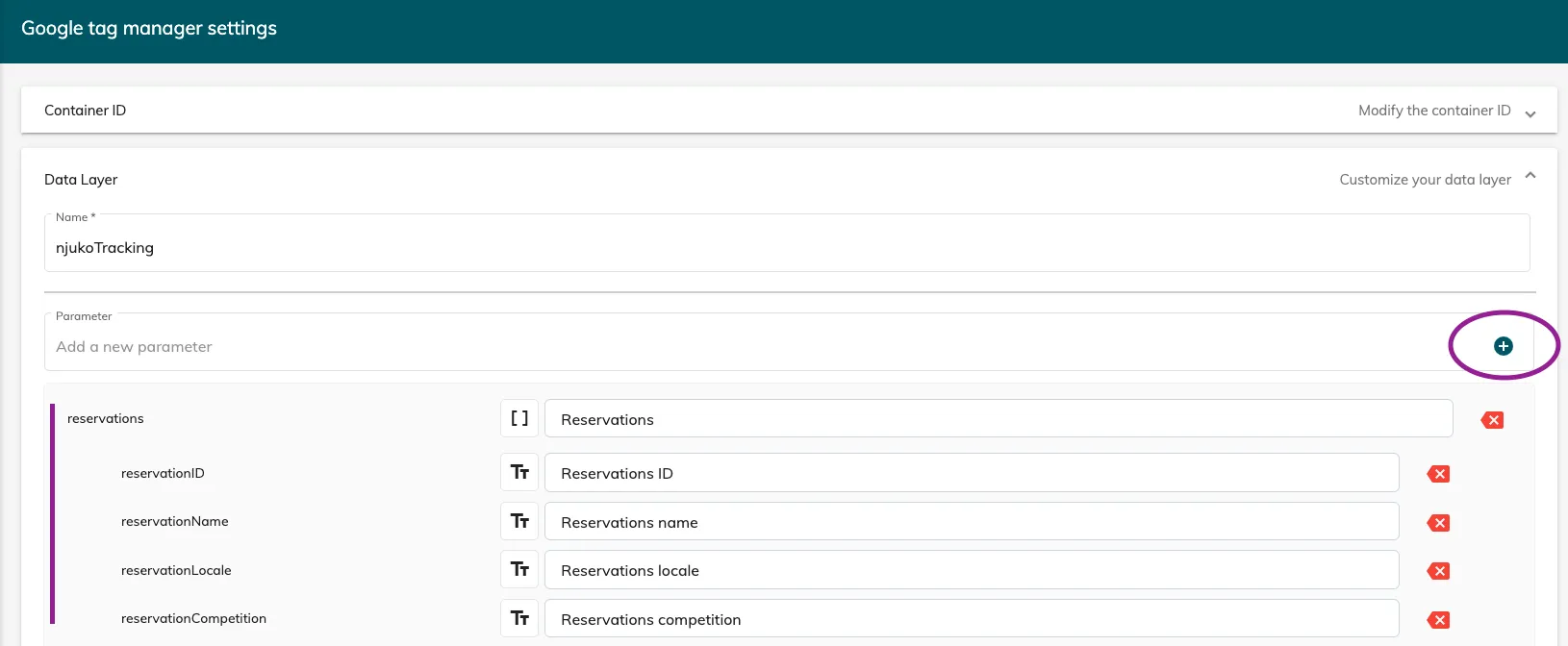
You’ll first need to name the parameter, then select the corresponding data in your edition.
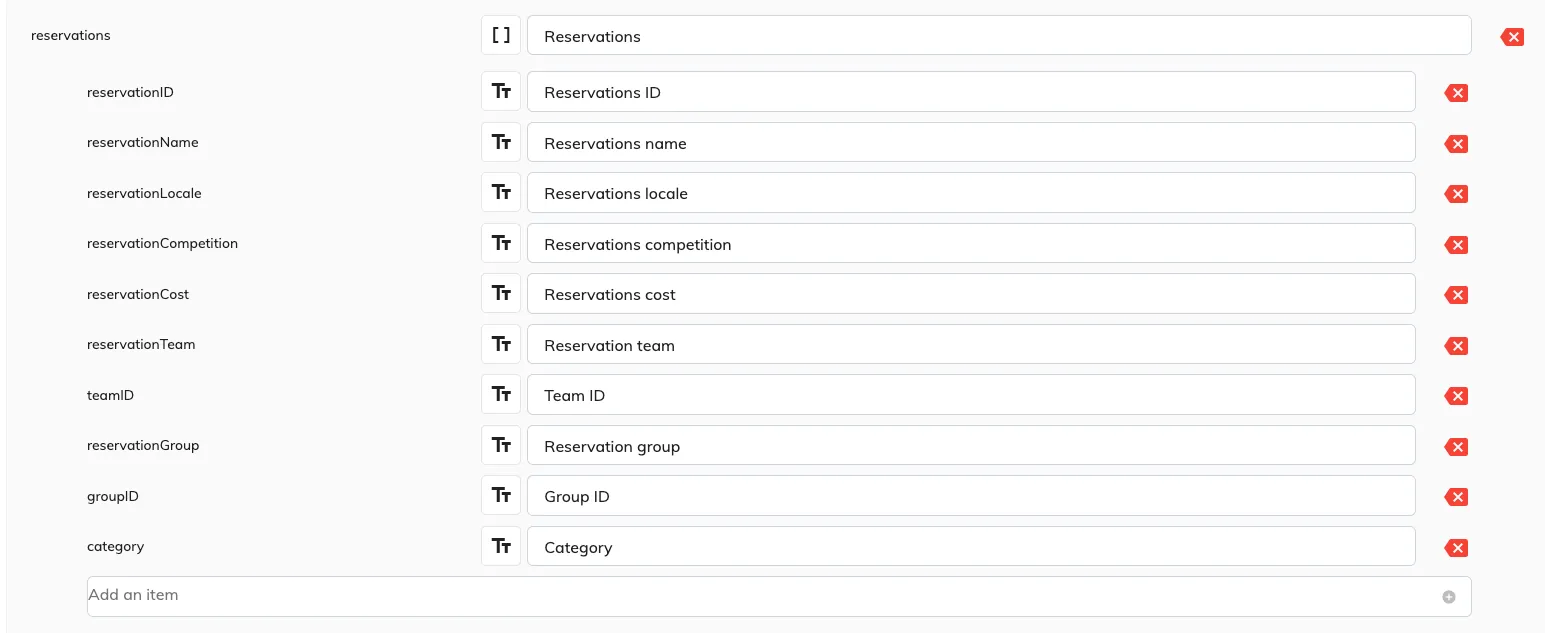
For certain parameters, several items can be added. The ‘reservations’ parameter for example:
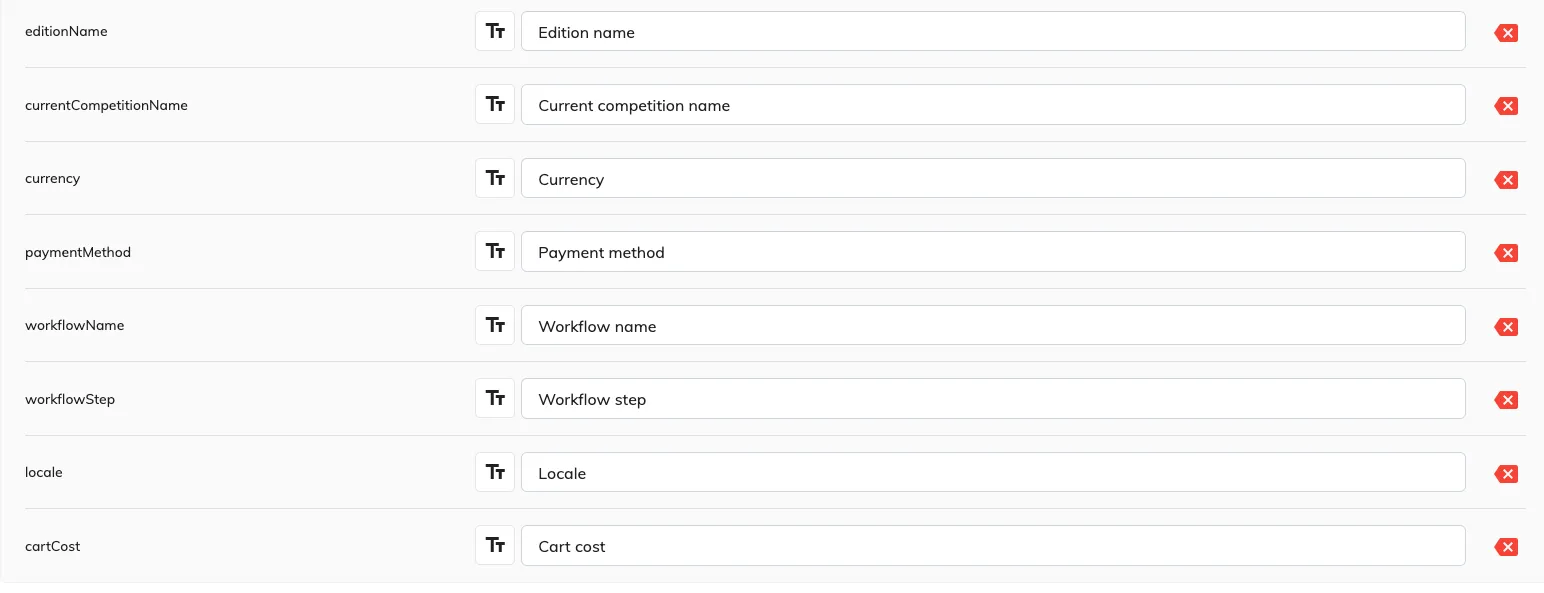
Here are some of the other parameters you can add:
2.2 What do the tracking events correspond to?
-
SELECT_COMPETITION: competition (ticket/distance) selection page
-
VALID_FORM: the participant is in the form (each form is pushed along with the name of the form)
-
SELECT_PAYMENT_METHOD: the participant is choosing how to pay
-
CONFIRMATION: the participant has confirmed their entry (after payment)
-
NEXT_CART: the participant presses next at the cart step
-
EDIT_ONE_CART: the participant edits their entry at the cart step
-
ADD_ONE_CART: the participant adds someone else to their entry
-
ADD_TEAMMATE_CART: the participant adds a teammate to their entry when entering as a team
-
EDIT_GROUP_CART: the participant edits their creation of a group at the cart step
-
CLEAR_CART: the participant clears all entries in their cart
Cart in this case could be referenced as basket for terminology.