
Form field visibility settings explained
Understand how Required, Visible, and Editable settings affect your forms.
Form field visibility settings control how questions behave in your registration forms.
They determine whether a field is shown, must be completed, or can be edited later. Understanding these settings is key to building a smooth and reliable registration experience.
1. Where to find these settings
Go to:
Setup → Forms → Edit your form → Edit a field
Open the Visibility tab to configure the field behaviour.
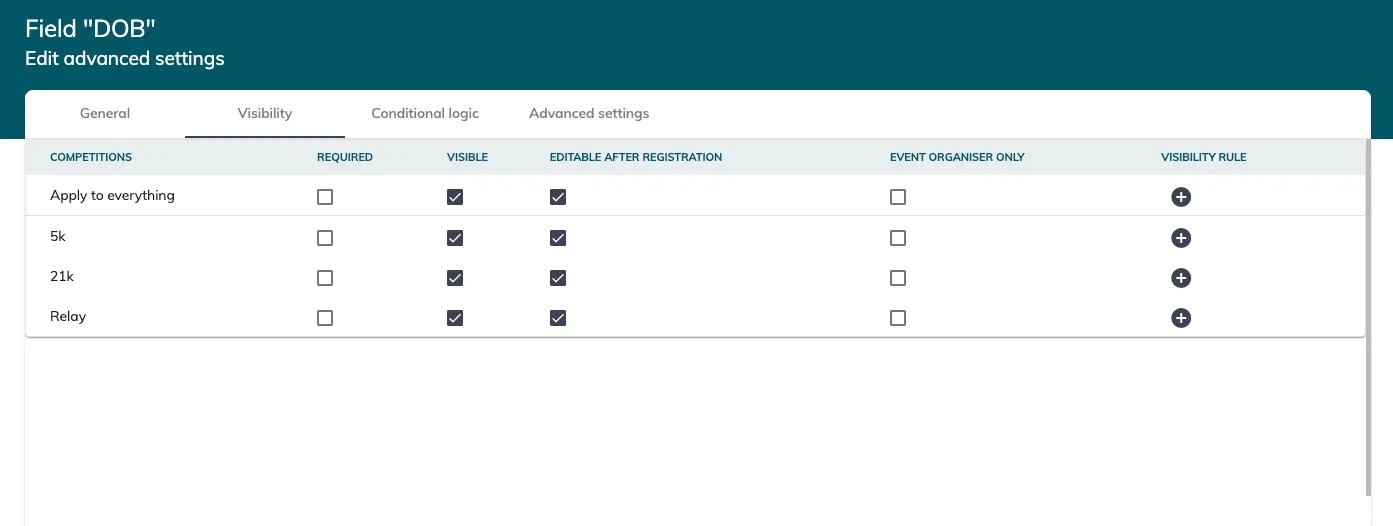
2. Field visibility settings explained
2.1 Required
When a field is marked as Required, participants must complete it.
-
The form cannot be submitted without it
-
It must also be completed if the participant returns later
👉 Use this for essential information (e.g. date of birth, emergency contact)
2.2 Visible
When a field is Visible, it is shown on the form.
If not visible:
-
The field is hidden from participants
-
It can still be used internally or filled via imports
👉 Use this for:
-
Internal tracking fields
-
Hidden logic (e.g. campaign tracking, admin-only data)
-
Displaying a field to certain competitions only
2.3 Editable
When a field is Editable, participants can modify it after registration.
If not editable:
-
The field is locked after the initial submission
-
Participants can view it, but not change it
👉 Use this for:
- Information that must not change (e.g. category, qualification data)
2.4 Event organiser only
When a field is marked as Event organiser only, it is not visible to participants.
-
The field is only accessible from the back office
-
It can be used by your team for internal purposes
👉 Use this for:
-
Admin-only notes
-
Internal tracking fields
-
Data that should not be exposed to participants
2.5 Visibility rule
Visibility rules allow you to control when a field is displayed.
You can define:
-
A specific date and time range
-
Whether the rule applies to one or multiple competitions
Within the defined period:
- The field is visible to participants
Outside of this period:
- The field is hidden
👉 Use this for:
-
Time-sensitive questions
-
Information that should only be collected during a specific phase (e.g. pre-event, late registration)
3. How these settings work together
Each setting controls a different aspect of how a field behaves:
-
Visible → can the participant see the field?
-
Required → must the field be completed?
-
Editable → can the participant change it later?
-
Event organiser only → is the field restricted to back-office use only?
-
Visibility rules → when is the field visible?
These settings can be combined to create very specific behaviours.
Examples:
-
Visible + Required + Not editable
The participant must complete the field during registration, but cannot change it later. -
Visible + Optional + Editable
A flexible field that participants can complete and update at any time. -
Hidden + Not required
A field used only for internal logic or data tracking. -
Event organiser only
A field that is never shown to participants and is managed entirely from the back office. -
Visible with visibility rules (date range)
A field that only appears during a specific registration phase.
Using these combinations allows you to control both the participant experience and your internal data collection with precision.
4. Best practices
-
Only make fields required if the information is essential
-
Avoid too many required fields to reduce drop-off rate
-
Use non-editable fields for sensitive or validated data
-
Use hidden fields for internal tracking or automation
-
Always test your form from a participant’s perspective
Related articles
👉 How to create a participant registration form
If you’re unsure how to structure your forms for the best participant experience, our team is happy to help.