
How to use campaign links
What they are, how they work, and how to use them strategically.
Campaign links allow you to control who can access specific competitions, at which price, and under which conditions.
They are powerful tools to manage priority access, private pricing, invitations, and exceptional cases — while maintaining full tracking and visibility.
1. What is a campaign link
A campaign link is a unique URL generated from your edition’s back office. It redirects users to selected competitions at a defined price.
Each campaign link allows you to:
-
Track the number of clicks
-
Track the number of registrations
-
Limit usage (optional quantity cap)
-
Define availability dates
-
Apply specific automated actions
Campaign links can also include advanced behaviours, such as:
-
Bypassing competition capacity
-
Allowing registration outside official dates
-
Pre-filling form fields
-
Linking participants to a group
-
Skipping an application phase
They are designed to give you flexibility while maintaining control.
2. How to create a campaign link
In your edition, go to:
Communication > Campaign links > Add a campaign link
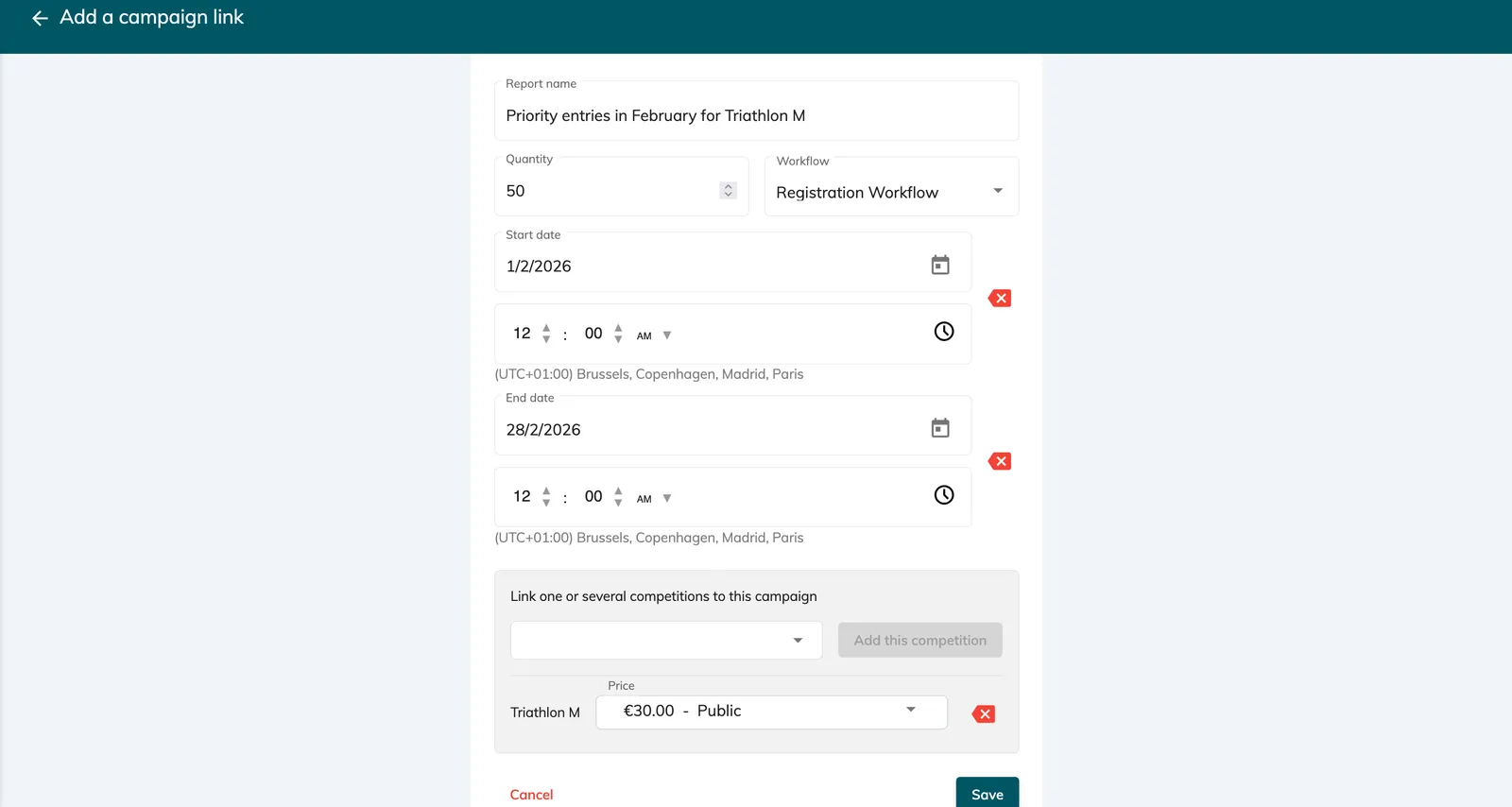
2.1 Creating a campaign link
When creating a new campaign link, you must define:
-
Report name (internal reference)
-
Quantity (optional — limit total usage)
-
Workflow used
-
Start date and time (optional)
-
End date and time (optional)
-
Linked competition(s) and their associated price
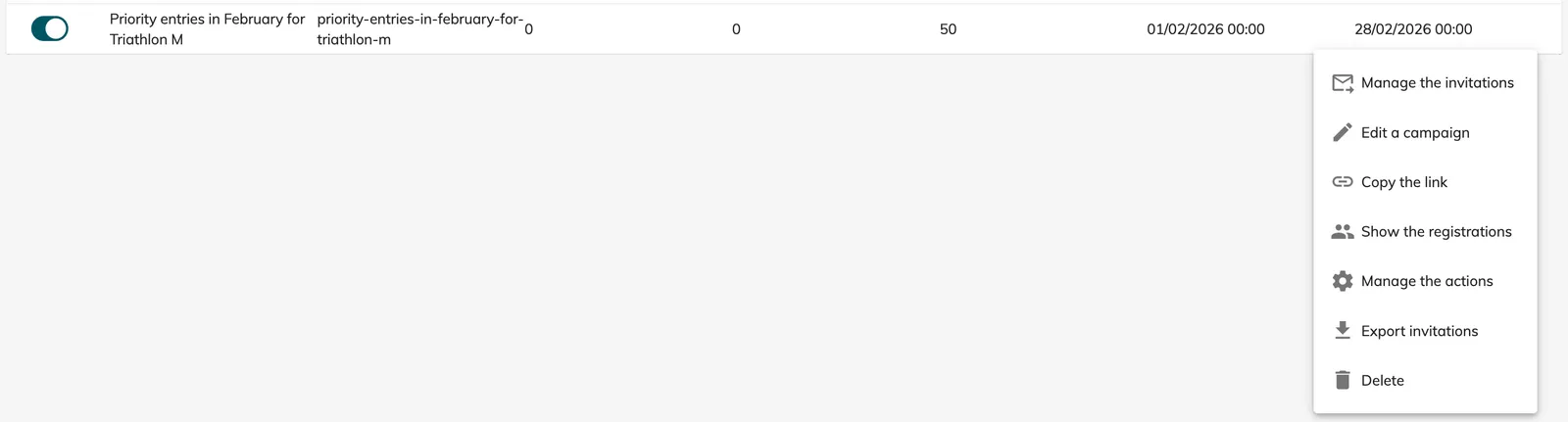
Once created, click on the three dots to the right of the campaign link to access the following actions:
-
Manage invitations
-
Edit the campaign (some fields become locked once used)
-
Copy the link for sharing (website, newsletter, social media, etc.)
-
View registrations coming from this link
-
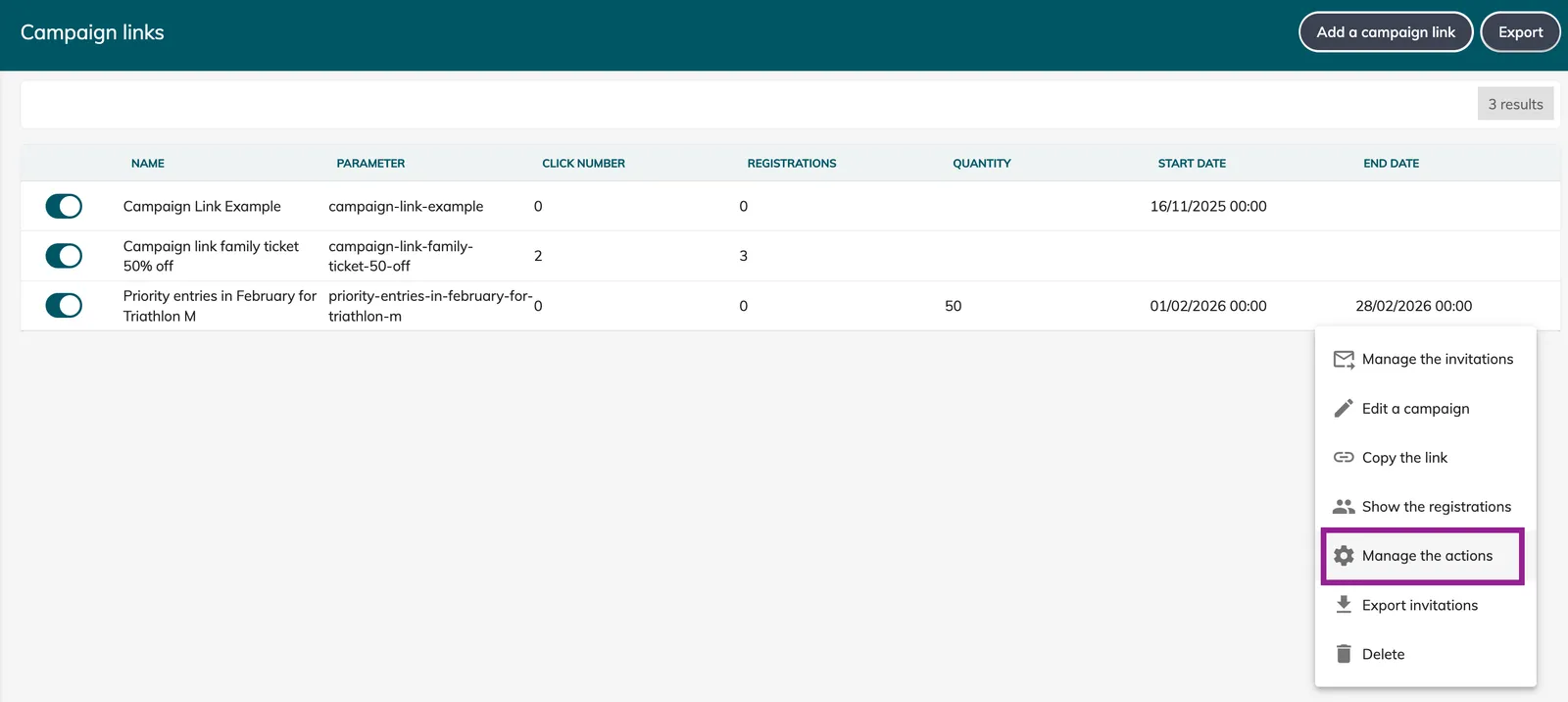
Manage actions
-
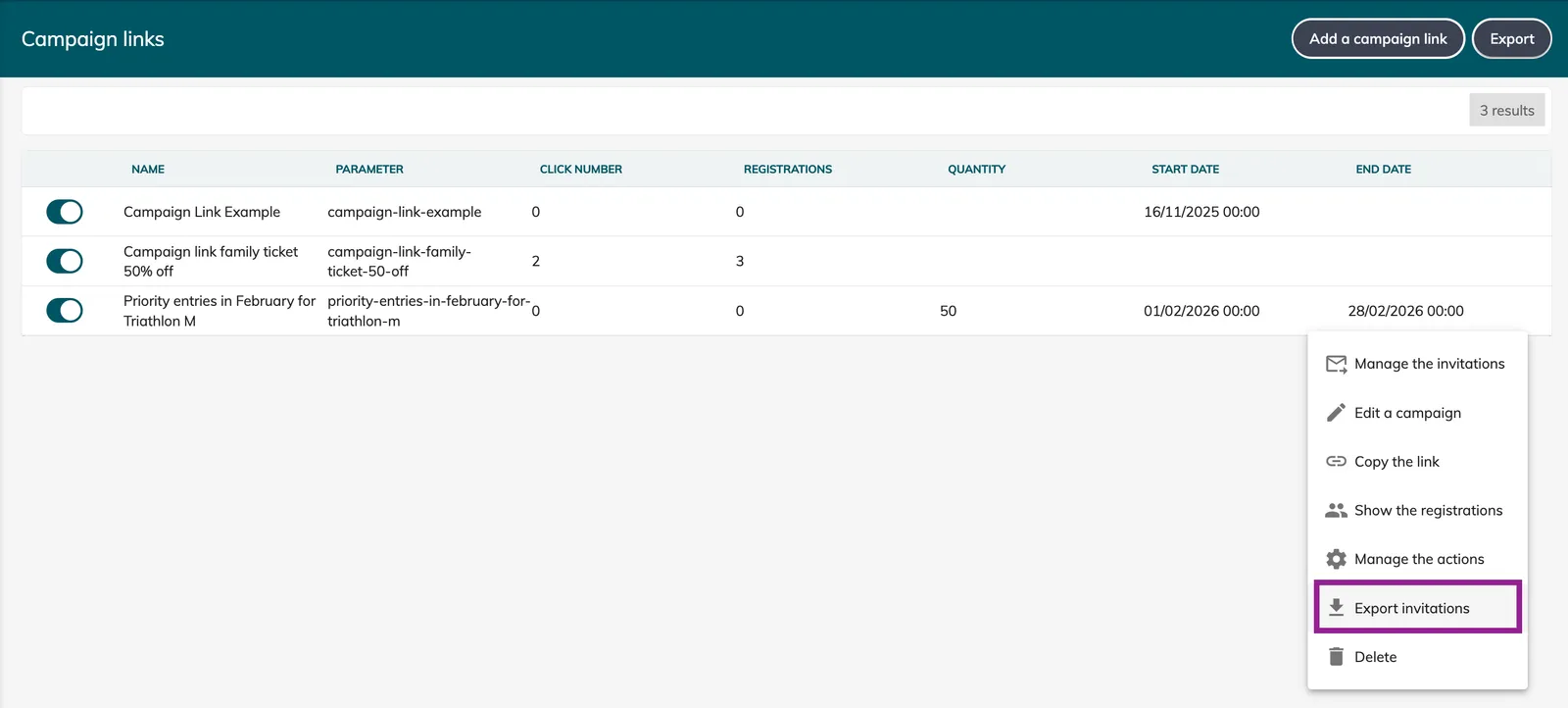
Export invitations
-
Delete the campaign (only if unused)
3. Manage your campaign link invitations
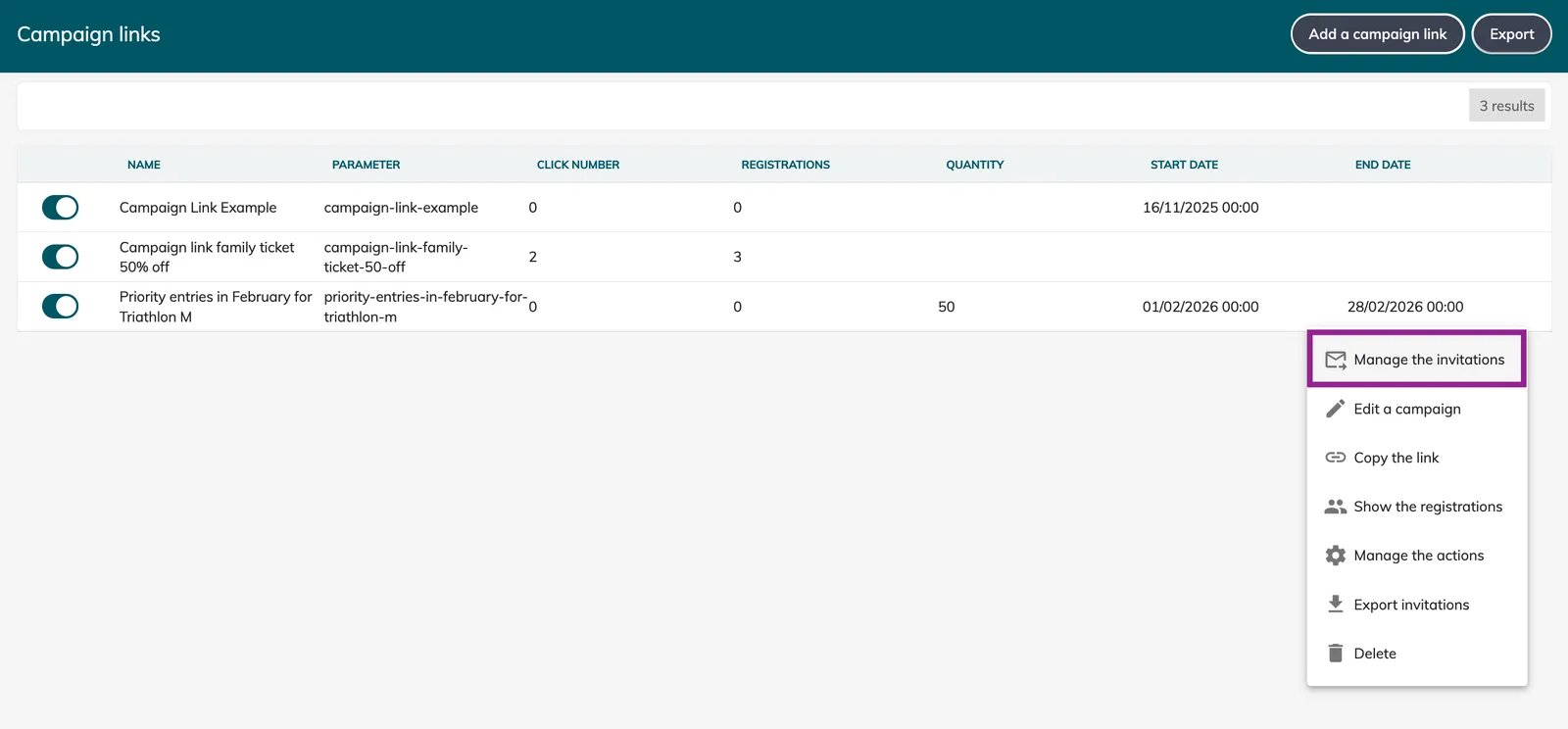
You can generate invitations linked to your campaign link. Each invitation produces a unique URL that can be claimed by the recipient.
To access:
Click on the three dots next to the campaign link > Manage invitations
Then, click Add a campaign link invitation list.
Define:
-
A label
-
Optional expiration date and time
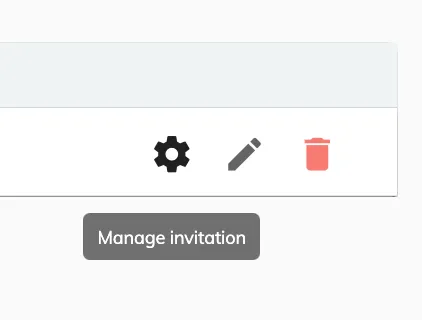
Once created, click Manage invitations.
3.1 Adding nominative invitations
Option 1: Manual Entry
Click Add an invitation and enter:
-
First name
-
Last name
-
Email
Then click Save.
Option 2: Import a List
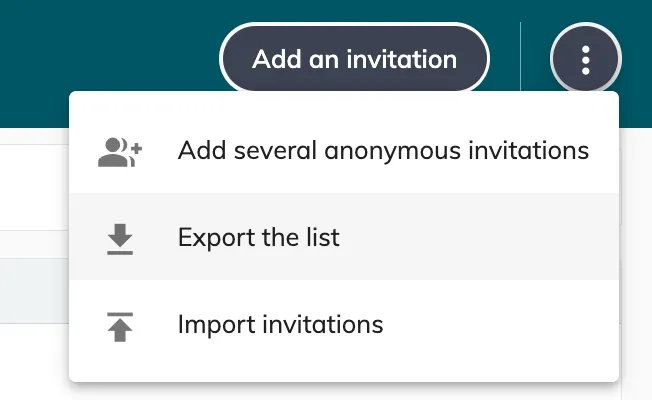
Click the three dots (top right) > Import invitations > Upload your file > Import.
This is recommended for bulk invitations.
3.2 Inviting nominative invitations via email
For nominative invitations, you can send a personalised email containing the campaign link.
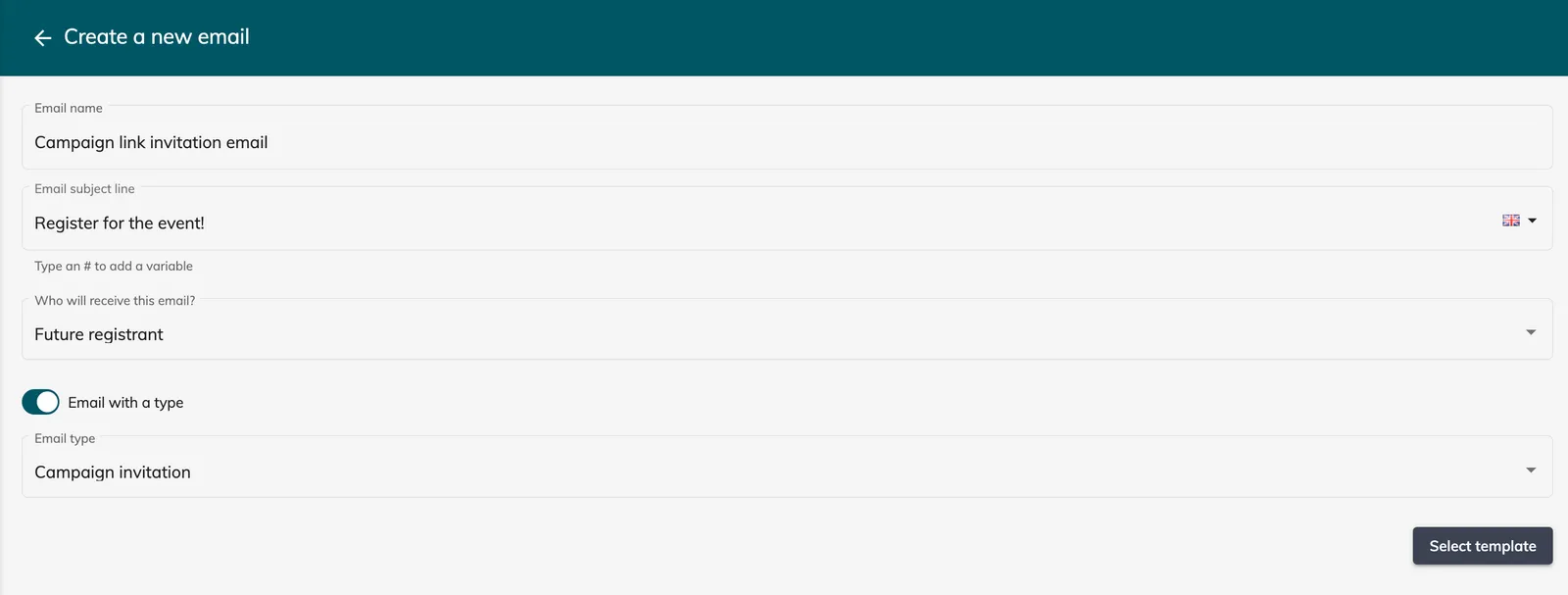
Step 1: Create the Email Template
Go to:
Communication > Emails > Create a new email
Set:
-
Destination: Future registrant
-
Email type: Campaign invitation
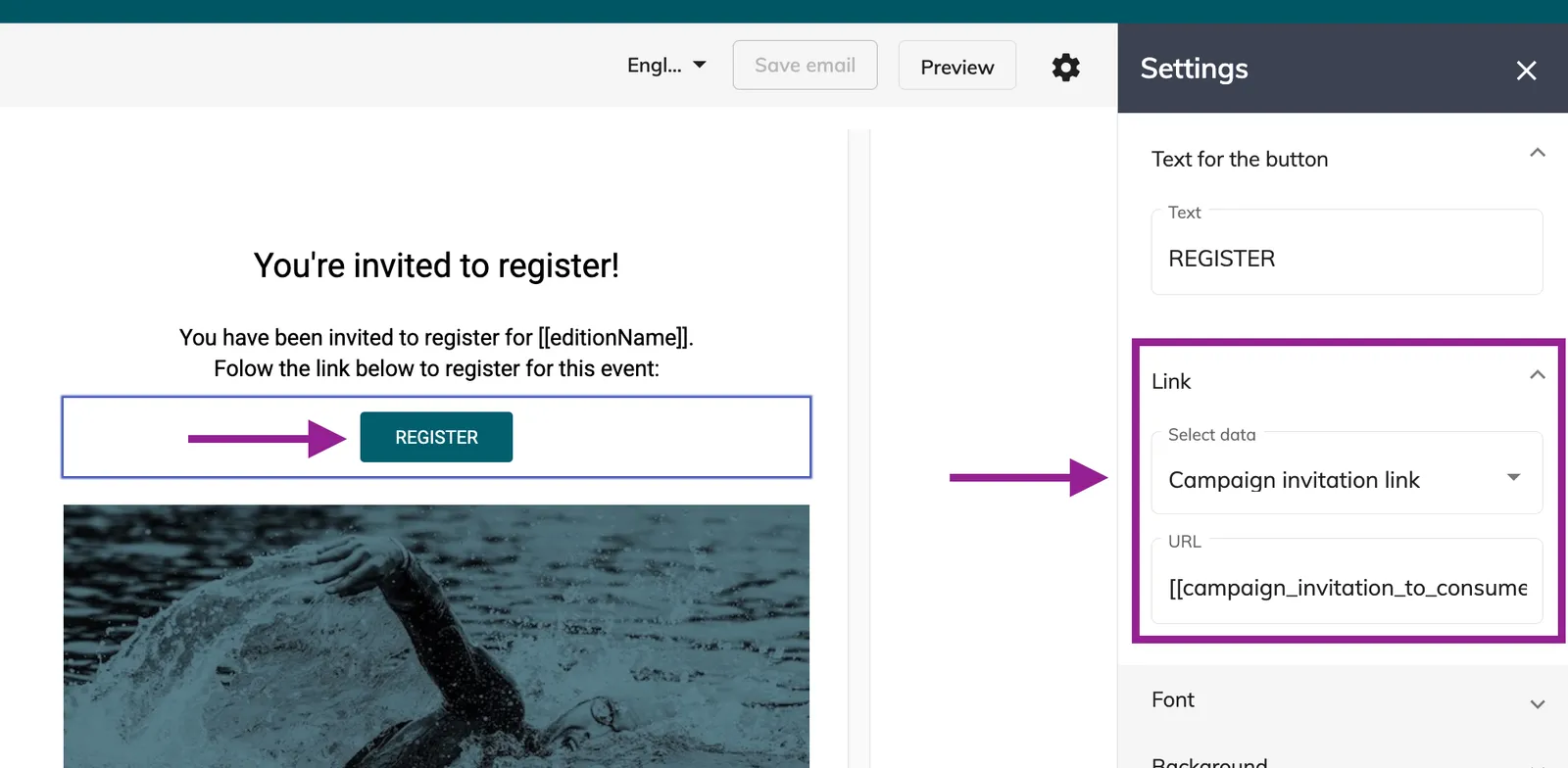
In the email content, insert the variable Campaign invitation link (as a button or hyperlink).
Available variables for this email type:
-
Campaign end date
-
Campaign start date
-
Campaign name
-
Campaign invitation link
-
Invitation last name
-
Invitation first name
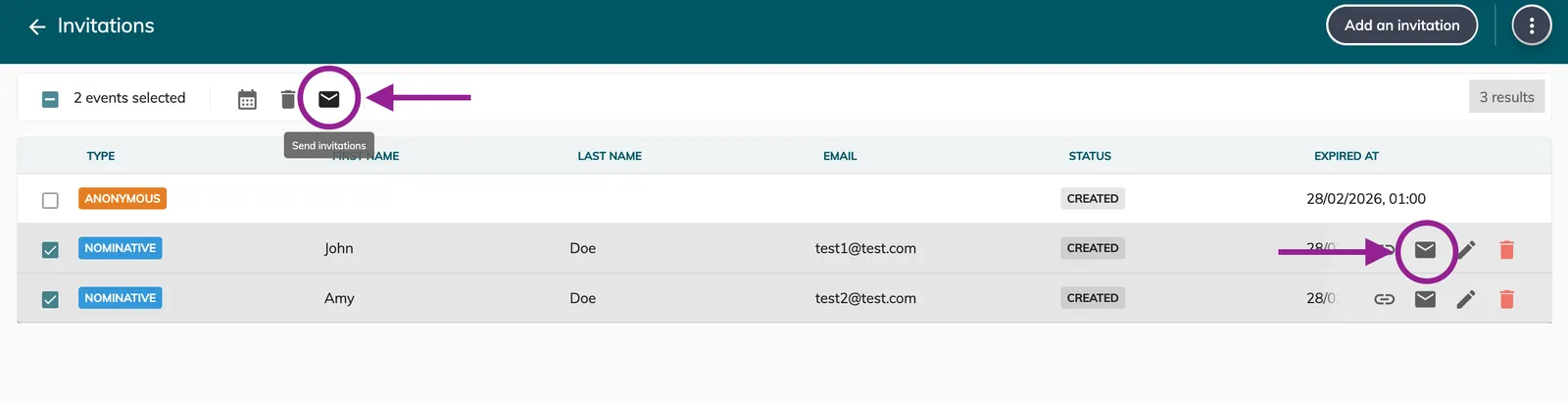
Step 2: Send the Invitations
You can send invitations:
-
In bulk (select multiple recipients)
-
Individually
This ensures controlled and personalised access.
3.3 Adding anonymous invitations
Anonymous invitations generate claimable links without attaching a name.
Option 1: One by one
Click Add an invitation > Activate Anonymous invitation > Save.
Option 2: Bulk creation
Click the three dots (top right) > Add several anonymous invitations > Enter quantity > Add.
This is useful for partners, influencers, or open but controlled access scenarios.
3.4 Exporting your invitations
Exports help track distribution and follow-up.
You can export:
-
A specific invitation list (Action centre > Export the list)
-
All lists within a campaign (from invitation lists > Export)
-
All invitations directly from the campaign link (three dots > Export invitations)
4. Manage your campaign link actions
Campaign links can trigger automated actions.
To configure:
Click on the three dots of the campaign link > Manage the actions > Add an action
Some advanced actions require installation of the module:
Campaign links – Advanced actions
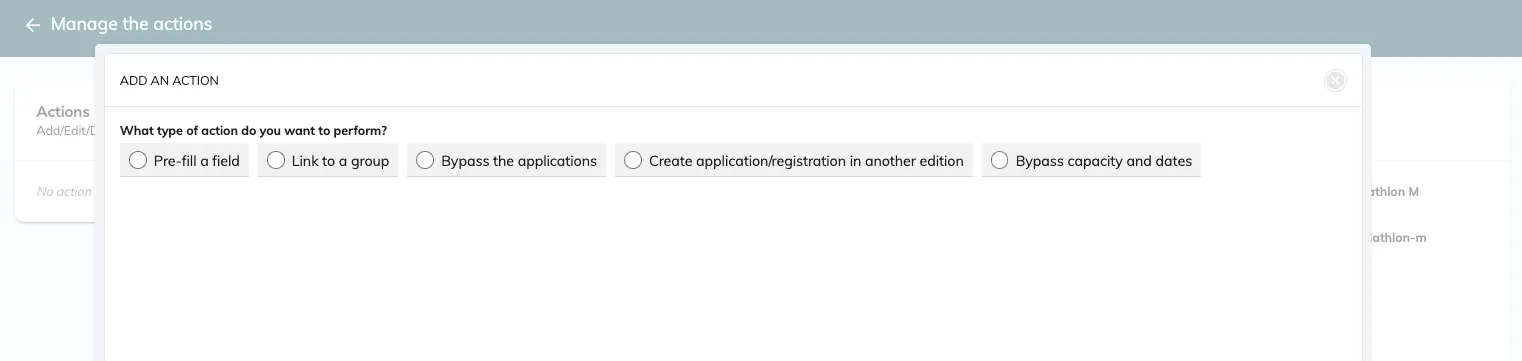
Click on Add an action > select the action you’d like to add:
4.1 Pre-fill a field
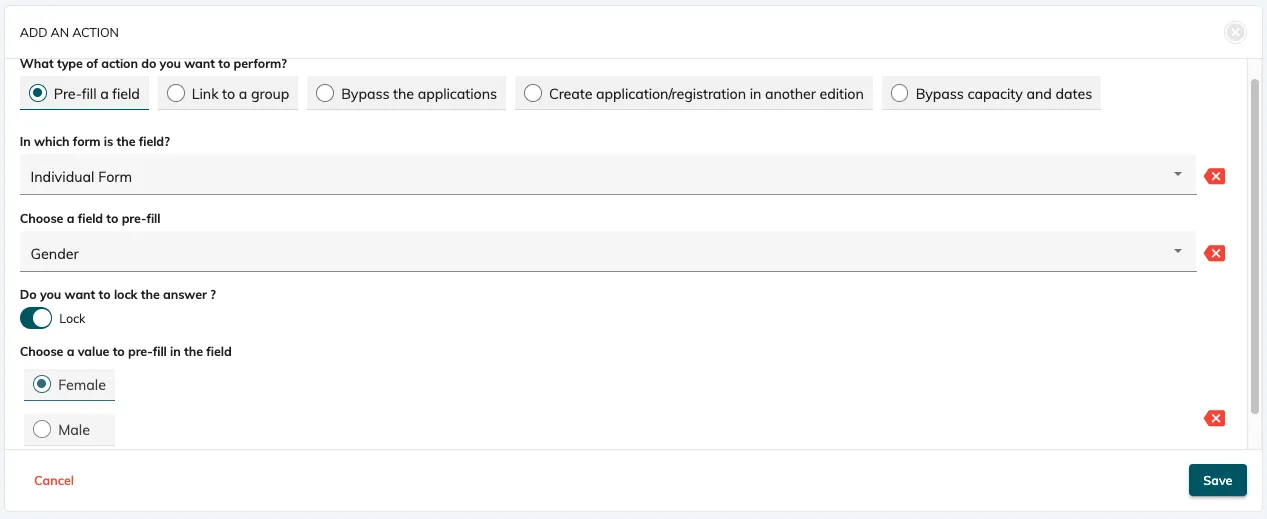
Automatically pre-fill a form field when the campaign link is used.
You can:
-
Lock the value
-
Leave it editable
Useful for partner codes, categories, or internal tracking.
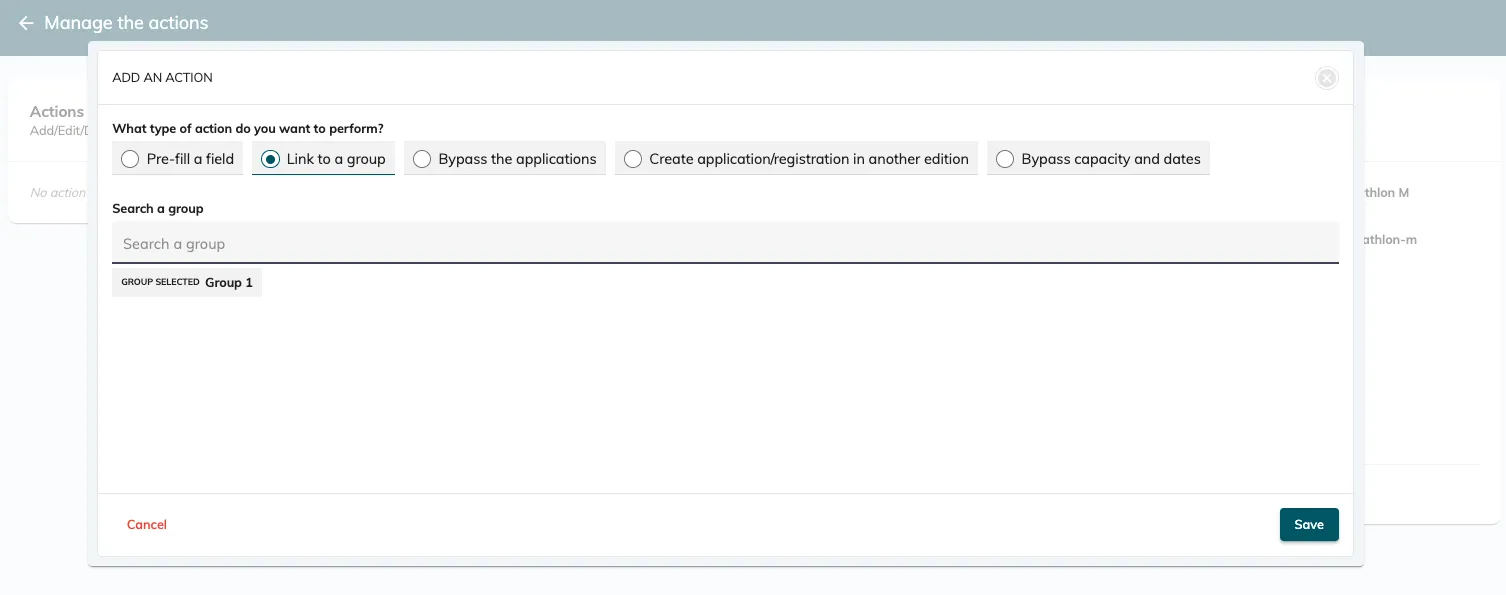
4.2 Link to a group
Automatically assign participants to a specific group upon registration.
Ideal for:
-
Corporate teams
-
Clubs
-
VIP groups
4.3 Bypass the applications
If your competition uses an application phase, this action allows invited participants to skip it and register directly.
Recommended for:
-
Elite athletes
-
Sponsors
-
Internal selections
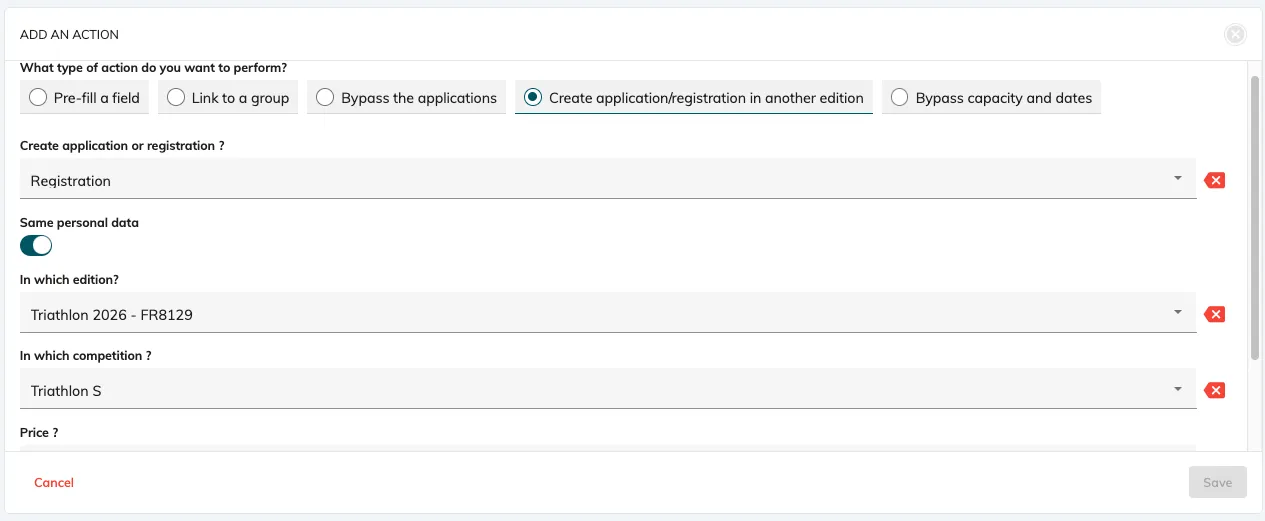
4.4 Create application/registration in another edition
This action automatically creates an application or registration in another edition when someone registers via the campaign link.
You must define:
-
Target edition
-
Target competition
-
A €0 price
You may also transfer the same personal data.
Useful for multi-event setups.
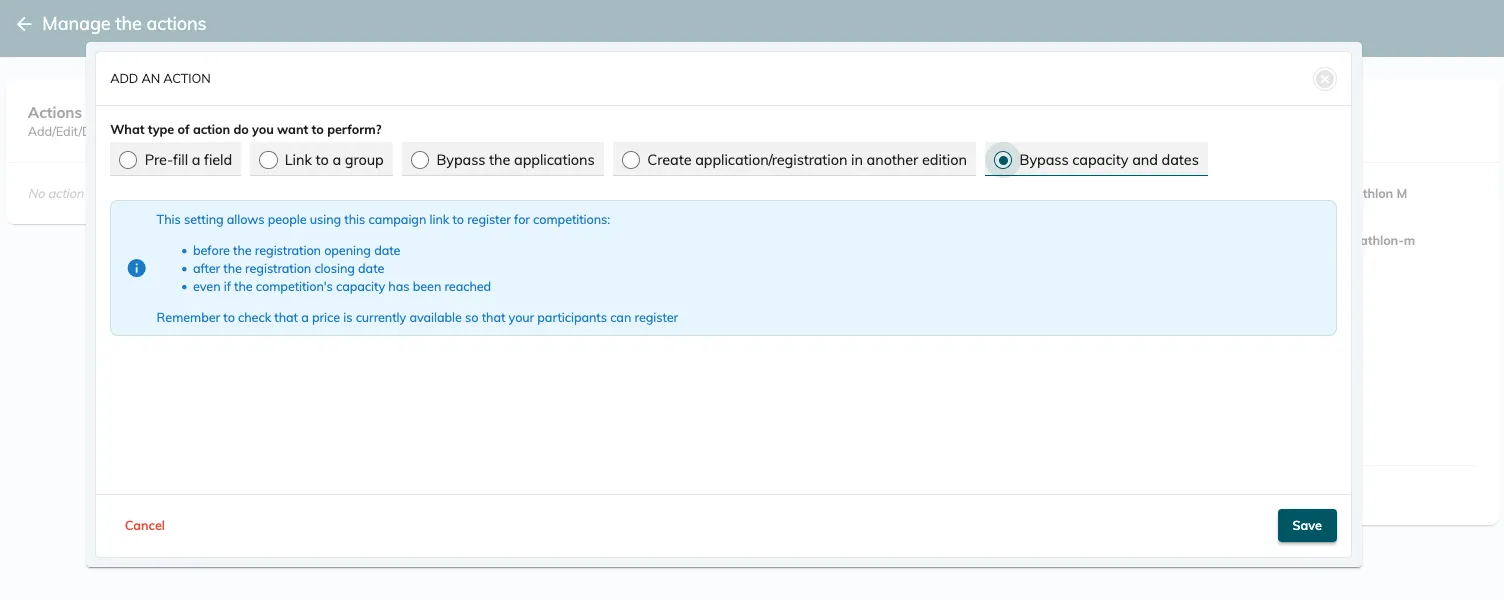
4.5 Bypass capacity and dates
This action allows participants to register:
-
Before official opening
-
After closing date
-
Even if capacity has been reached
Important: a valid price must still be active.
This is particularly useful for controlled late entries or exceptional cases.
5. Exports filtered by campaign links
You can create participant exports that only include registrations coming from specific campaign links.
This is useful for:
-
Tracking partner or sponsor registrations
-
Monitoring VIP / priority entries
-
Reporting on private pricing campaigns
-
Analysing performance of specific campaigns
How to create the export
Go to:
Registrations → Exports → Participants
Create a new export (or edit an existing one).
Add a campaign link filter
In Step 3 of the export setup:
-
Click Add criteria
-
Scroll down and select Campaign link
-
Search for the campaign link(s) you want to include
-
Click Add criteria
-
Save your export profile
Result
Only participants who registered using the selected campaign link(s) will appear in the export.
This allows you to reuse the same filtered export at any time without reapplying criteria manually.
6. Examples of use cases
-
Priority entries (VIPs / elites / early bird / other): use the actions in your campaign link to bypass the competition’s capacity and opening/closing dates.
-
Late entries once a competition is closed or sold out: use the actions in your campaign link to bypass the competition’s capacity and closing dates.
-
Group registrations: use the actions in your campaign link to link people to a specific group when they use the campaign link.
-
Private and direct access to a competition with a customised price: create a campaign link for a specific competition with the price of your choice. You can then add this link to your website, newsletters or other.
-
Send direct invitations to your future participants: see sections 3.1 and 3.2
7. Video guides
7.1 Basics of creating a campaign link
7.2 Campaign link invitations
7.3 Campaign link actions
Campaign links are not just promotional tools — they are operational control mechanisms that help you manage priority access, partnerships, and exceptional cases without compromising your public registration setup.
If you are unsure about the best configuration for your event, our team is happy to guide you.