
How to configure njuko On Site for your edition
Prepare your edition so staff and volunteers can use the On Site app during race week and on event day.
The njuko On Site app allows your teams to manage participant check-in, bib collection, document validation, and on-site registrations.
Before your staff can log in, you must first configure the edition and generate the connection QR code.
1. Install the module
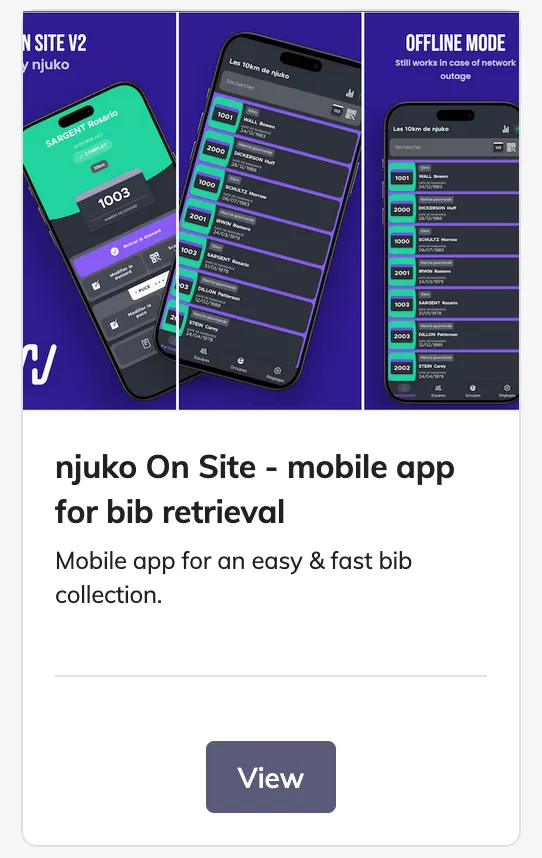
Go to the Store and install:
On Site V2
This module allows you to activate the connection between your edition and the njuko On Site mobile app.
2. Configure the On Site settings
In your edition, go to the left-hand menu:
On Site app
This is where you configure how the mobile app will work for your event.
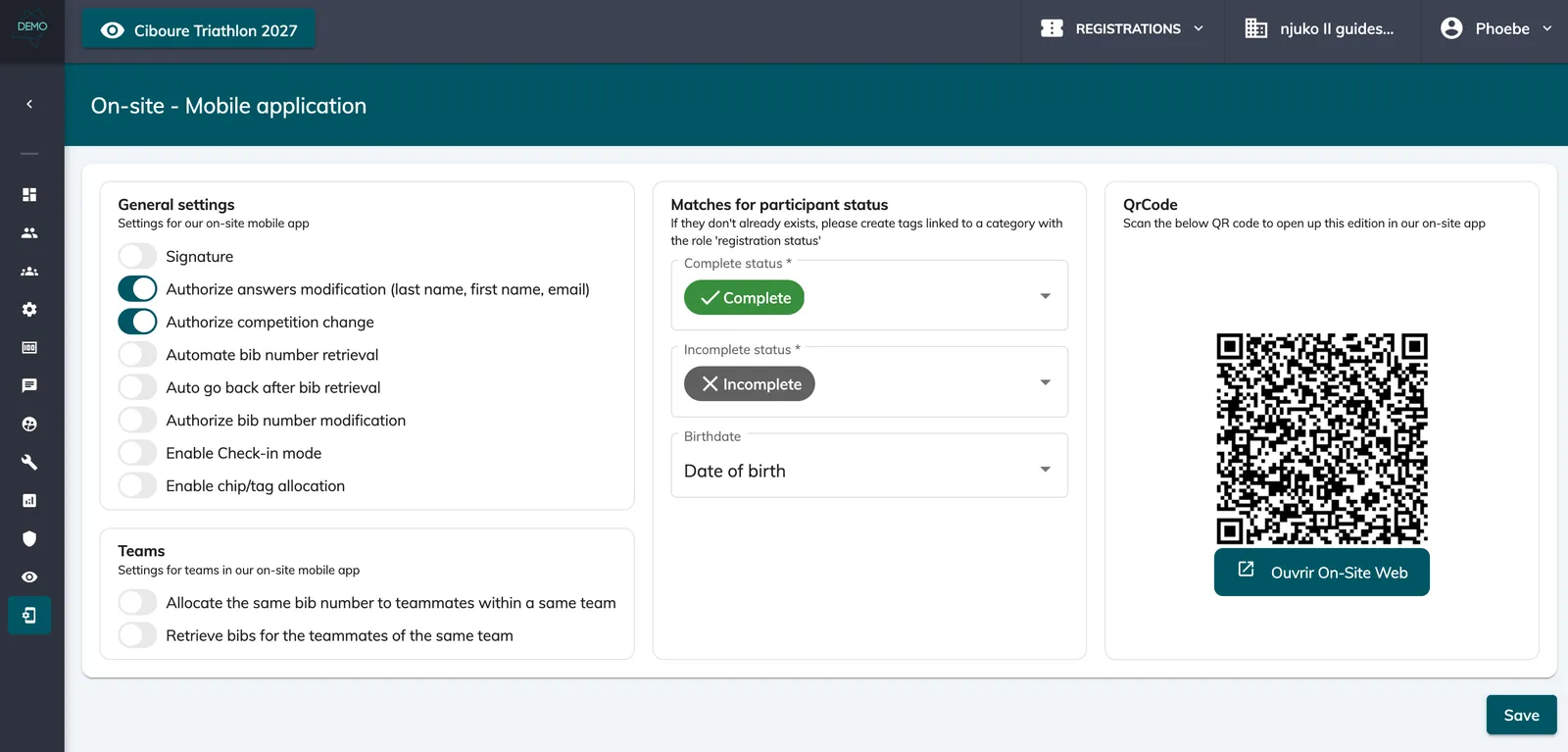
2.1 Configure the General settings
In the General settings section, complete the available options based on your event needs.
These settings define how the app behaves for:
-
Participant check-in
-
Bib collection
-
Search access
-
General on-site usage
We recommend reviewing all options carefully before race week.
2.2 Configure the Teams settings
If your edition includes team competitions, edit the Teams settings section.
You can allow the following:
-
Retrieve bibs for teammates in a same team
-
Allocate the same bib number to teammates within a same team
If you are not using teams, this section can be ignored.
2.3 Configure participant statuses
In the section:
Matches for participant status
This is where you define how the app recognises participant records.
Map the following fields and tags:
-
Date of birth field
-
Complete status
-
Incomplete status
This allows volunteers to quickly identify whether a participant is ready to collect their bib or still missing information.
2.4 Save and generate the connection QR code
Once all settings are complete, click Save.
A connection QR code will automatically be generated.
This QR code is what your on-site team will scan in the njuko On Site V2 app to connect to the edition.
3. Share access with your race-day team
Before race week, share the QR code securely with the people who need access.
They can then log in by:
-
Opening the app
-
Scanning the QR code
-
Entering their name
No manual configuration is required on their device.
4. Recommended pre-event checks
Before race week begins, we recommend testing the setup on at least one device.
Check that you can:
-
Connect via QR code
-
Search participants
-
View registrations
-
Allocate bib numbers
-
Access teams (if relevant)
This helps avoid delays on collection day.
Related article
👉 njuko On Site
Learn how volunteers and staff use the app during race week and on race day.
If you would like advice on the best On Site setup for your event, our team will be happy to help.