
How to add custom banners, headers and progress bars
Enhancing your forms with a custom banner, progress bar or header.
The forms are fully customisable, we give you the freedom to design them how you want, to order the fields, and even to add as many forms as you want to the registration flow. This gives you lots of opportunities to brand the forms nicely according to your race.
1. Adding a progress bar or a header to a form
If you’re looking to enhance your form by adding a progress bar on each step, or adding a header, something like this can be done:
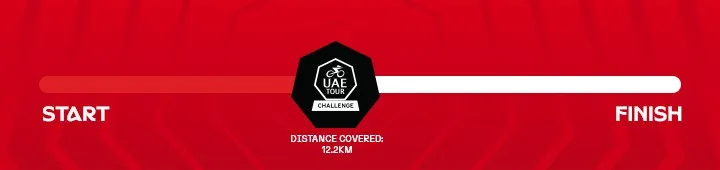
Abu Dhabi UAE Tour
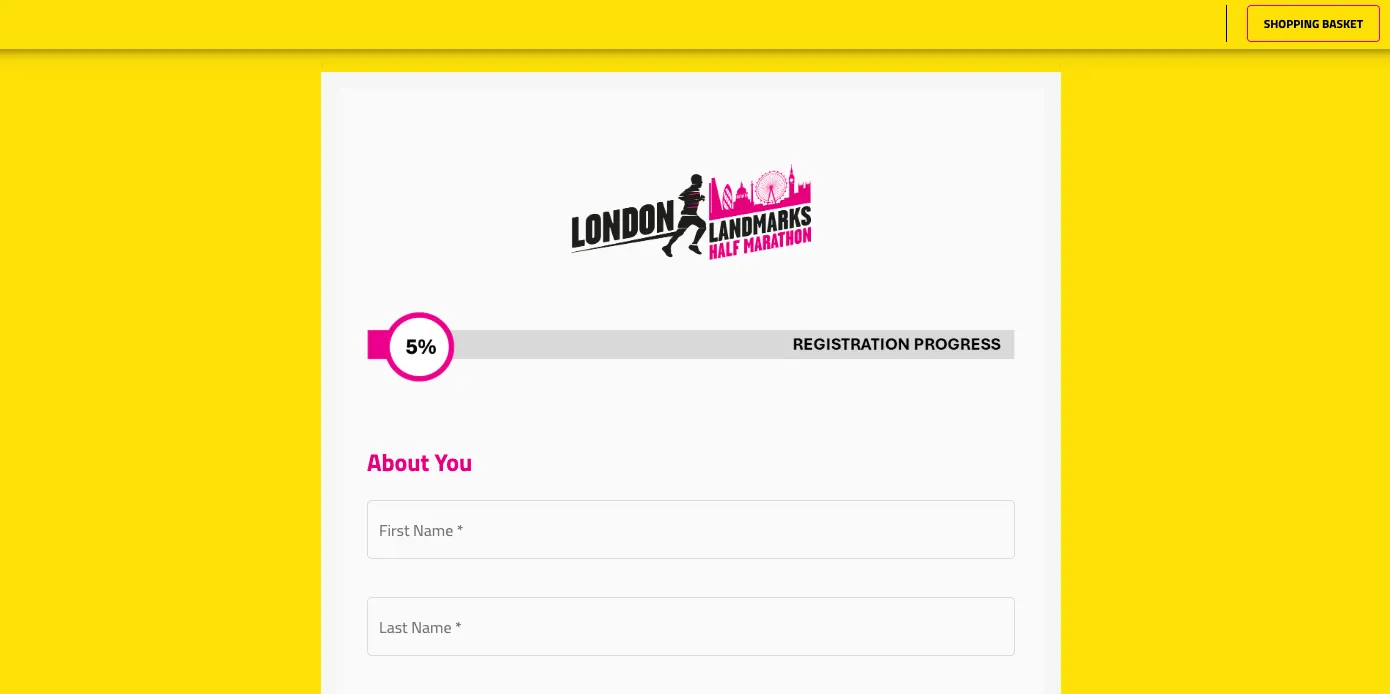
London Landmarks Half Marathon
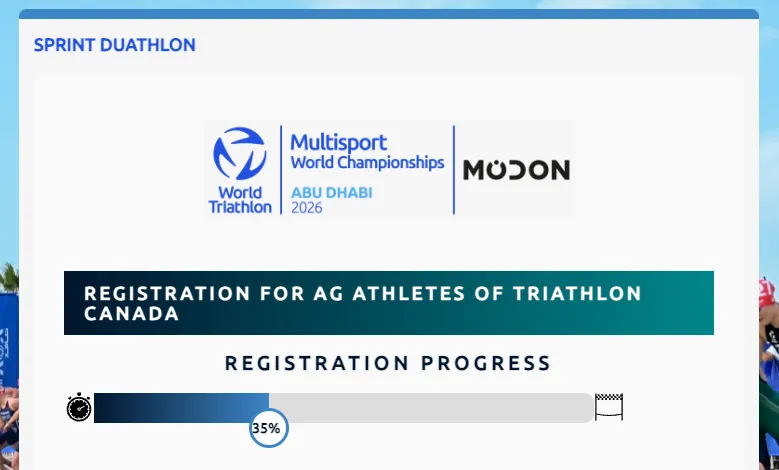
World Triathlon Organisation
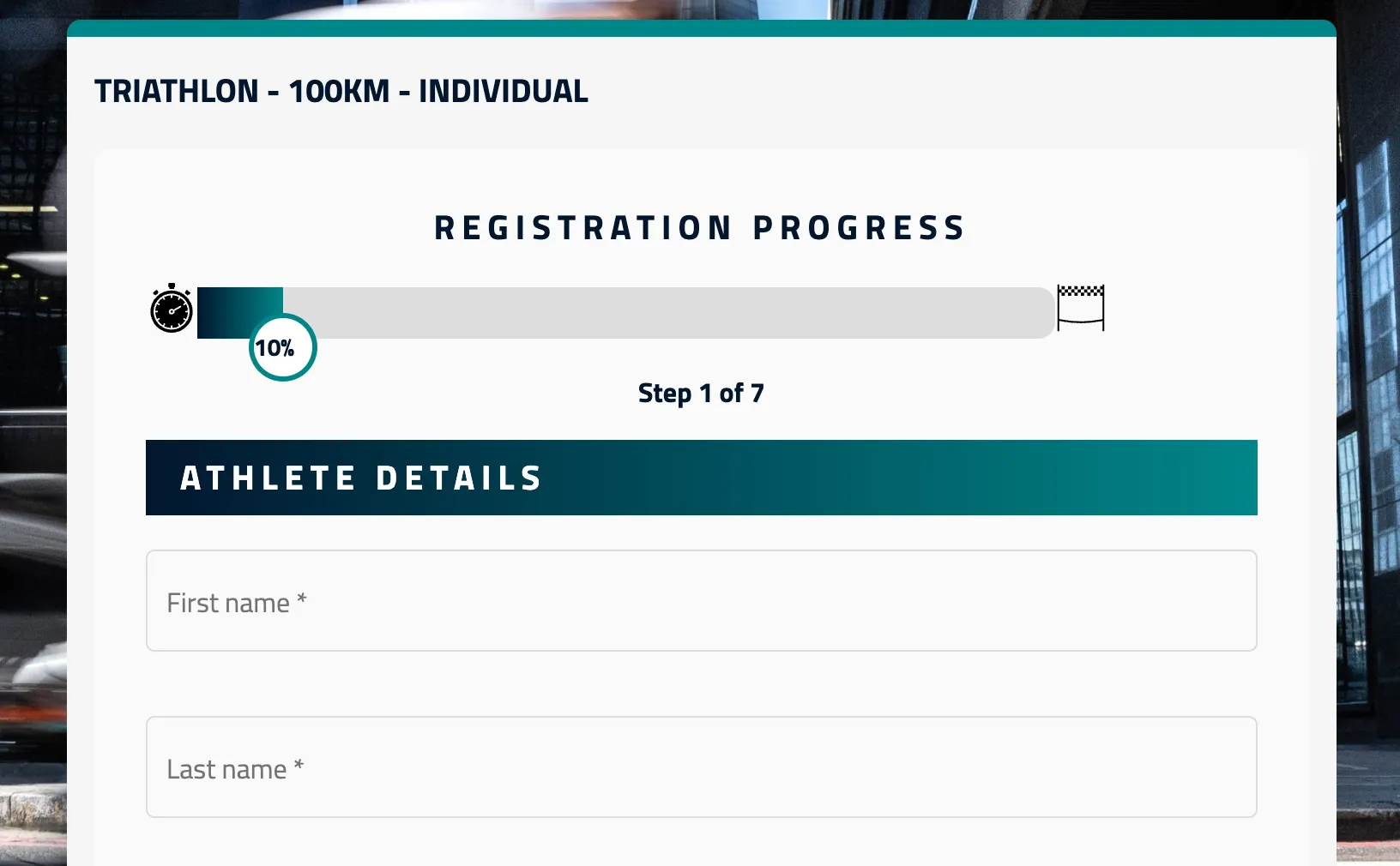
Pro Triathletes Organisation
You will need to design your own image and then insert it into the code view of a content field. Use this code and simply replace the image link (https://LINK-TO-YOUR-IMAGE.png) with the link to your own image:
)
2. Creating banners / titles within a form
If you are looking to create banners within your forms, here is an example of what you can make it look like and how to set this up:

2.1 Steps for creating a banner
-
Add a content field to your form.
-
In your content field, go to the code view.
-
Paste the below code into the code view section.

Personal information
2.2 Editing the content of the banner
The content can be edited in the normal content viewer section:

or within the code view section:
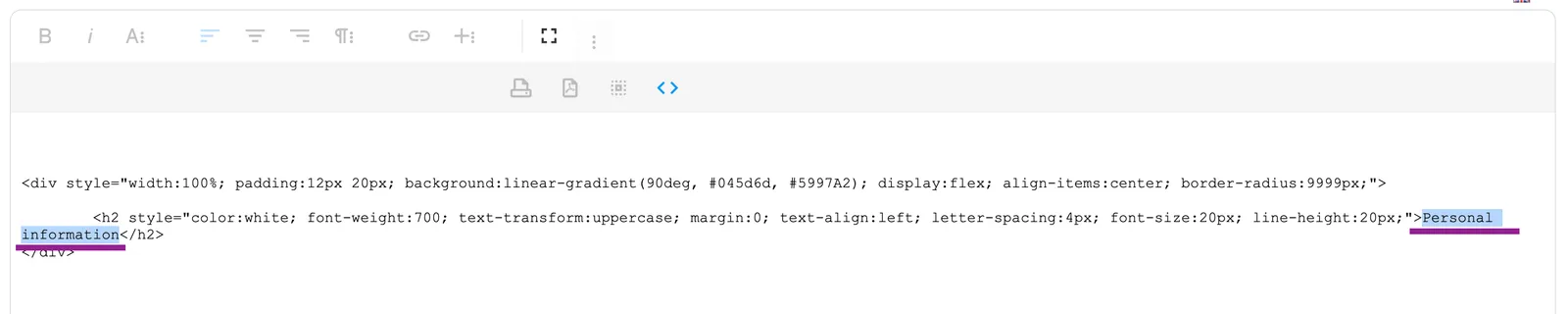
2.3 Editing the style of the banner
You can change the colour, and choose for it to be a gradient or single colour, simply by replacing the HEX codes here: background:linear-gradient(90deg, #045d6d, #5997A2)

All of the other settings can be changed, such as the font weight, the text alignment, letter spacing, font size, line height.