
How do I register a participant in the back office and have them pay for their basket in the front office?
Would you like to manually register a participant, while allowing them to complete their payment online afterwards? Here is the complete step-by-step process.
1. Register the participant in the back office
Go to:
Registrations > Add registration
Then:
-
Select the workflow to use
-
Select the participant’s language
-
Choose their competition
-
Define the price they will need to pay
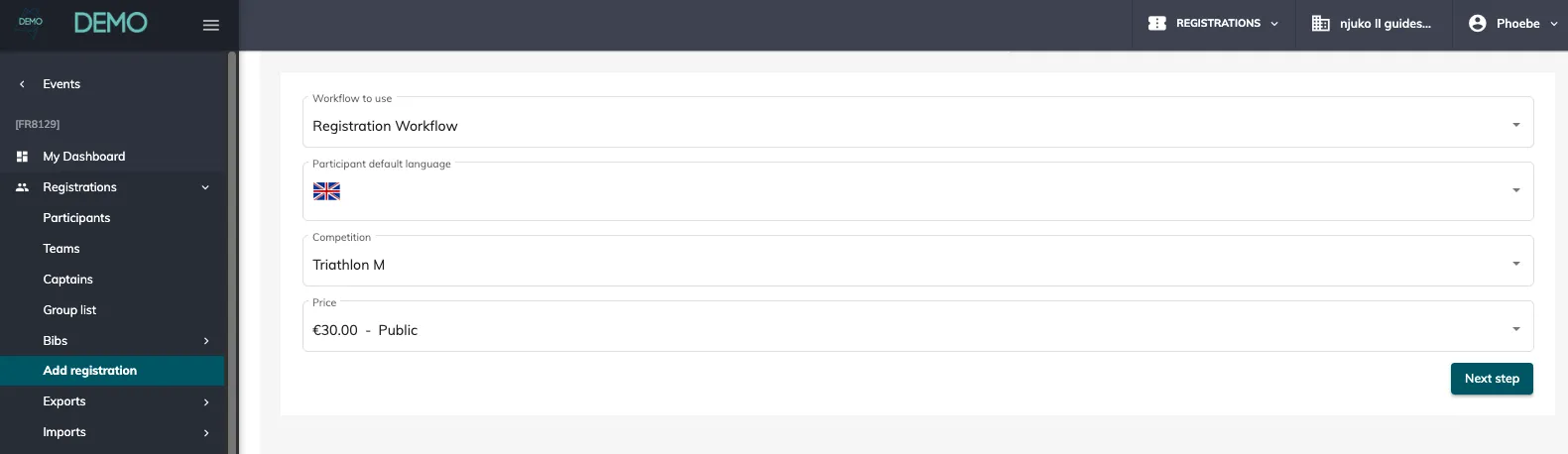
Complete all required form fields and steps until the registration is finalised.
At this stage, the participant is registered, but their basket remains unpaid.
2. Create an email with a link to the cart to pay
To invite your participant to complete their payment, you first need to create an email.
Go to:
Communication > Emails > Create a new email
Email settings:
-
Destination = Registered
-
Email type = None
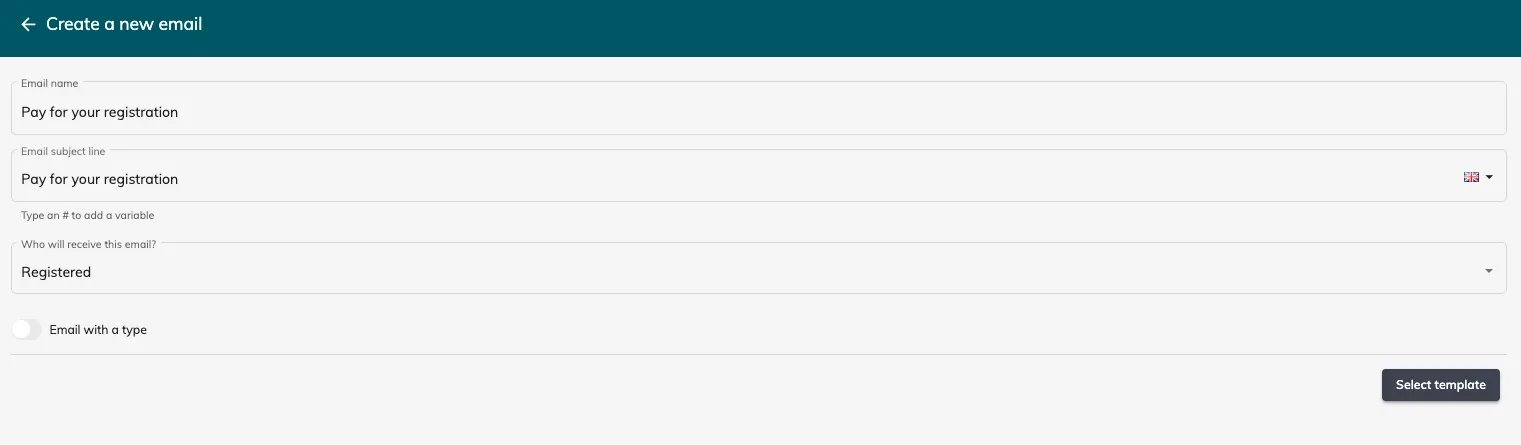
In the email content:
-
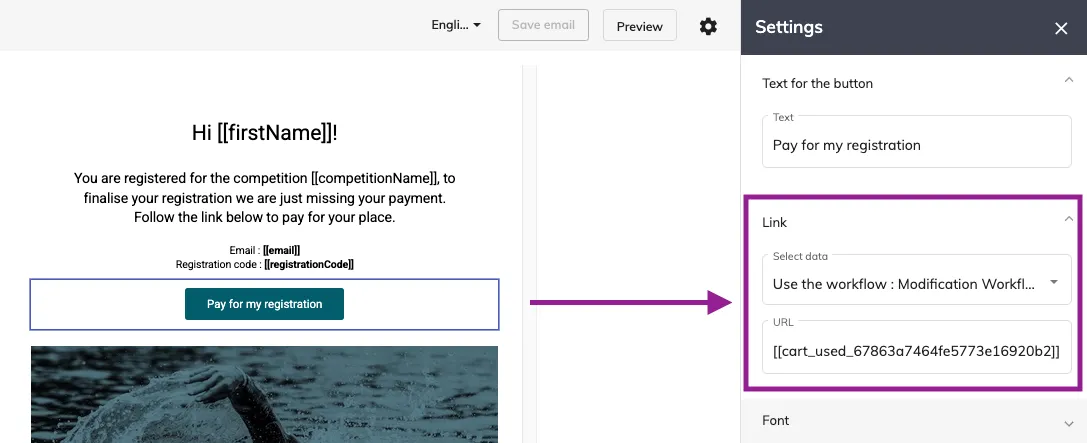
Add a button block
-
In the button link options, search for “Link a workflow to the cart step”
-
Select the modification workflow you want the participant to go through
The URL field will automatically populate.
3. Send the email from the cart
Open the participant’s page.
Go to the Cart details tab.
-
Click on the three dots at the top right of the unpaid cart
-
Select “Invite participant to pay this cart”
-
Choose the email you just created
-
Send it
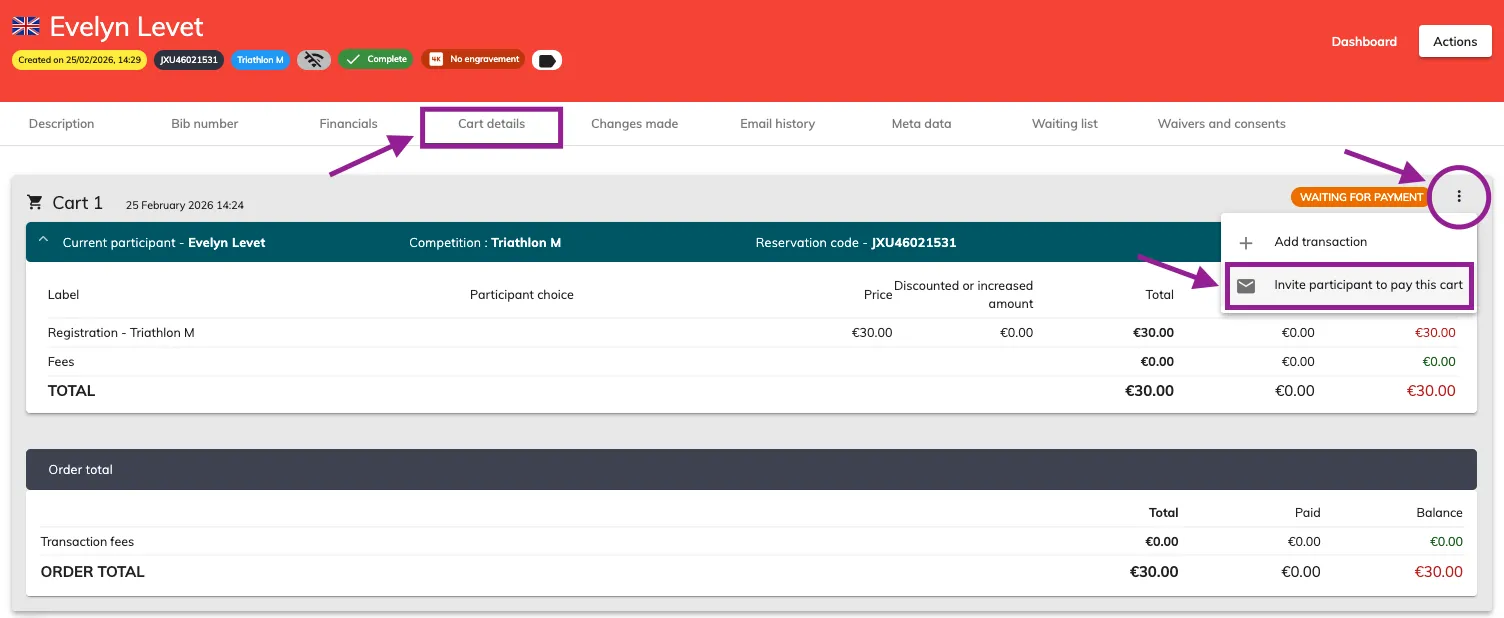
⚠️ Important: The email must be sent directly from the cart.
It cannot be sent via the general Actions > Send an email button.
4. Participant experience
The participant will receive your email, click on the button, and be redirected directly to their checkout page.
They can then select one of your available online payment methods and complete their registration.